When you generate digital collections, whether it be your notes or your photos, you begin to wonder if anyone but you cares or might have a use for what you have accumulated. I am part of the PKM community and have shared ideas for years about taking, using, and sharing notes. I have started generalizing some of these ideas to think about my photo library. I keep thinking some of these photos, if properly organized and maybe more importantly annotated, might be useful to others.
A few years ago, we spent a couple of weeks in southern Africa during which I had the opportunity to view and photograph the amazing wildlife of this area. I took hundreds and hundreds of photos and kept probably half. One task I took on as a project was to select from these images some I thought maybe elementary students might find useful. Yes, you could create a similar collection by going to the zoo, and such a visit by students would be superior to looking at my pictures. However, what I have done is create a collection I am making available under Creative Commons licenses. If you have a use for these photos, download them. I also linked the images to online content offering additional information. This connection between an image and information is what I think may be valuable to share.
For me, the identification of things I see, mountains, plants, and animals, is important, but necessarily something I can accomplish without assistance. Bird identification is not easy and makes a good example. I am not a birder and I easily forgot the identifications provided by our African guides. I used several online tools to try to attach accurate labels to the photos I have. There are several African birding guides available online. I found one of the best tools was Google Lens.
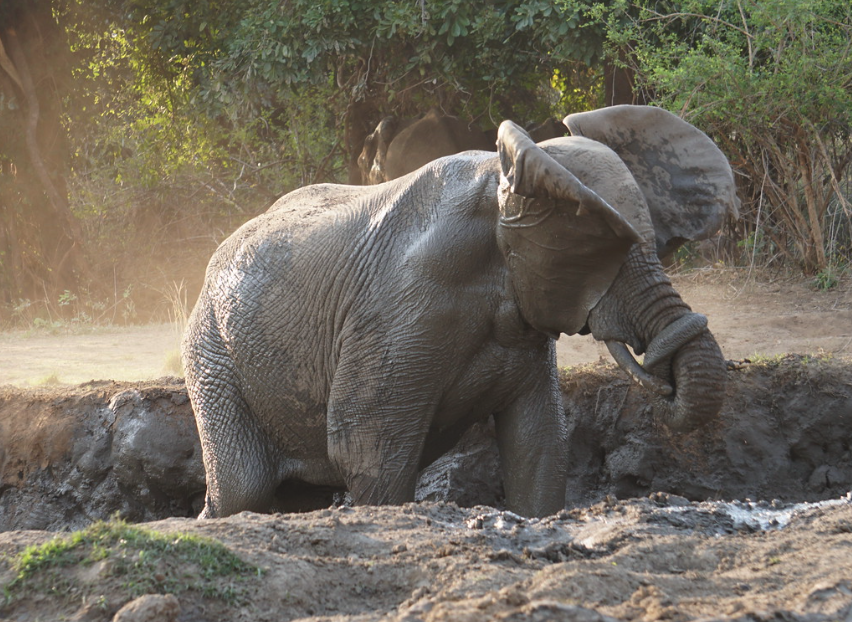
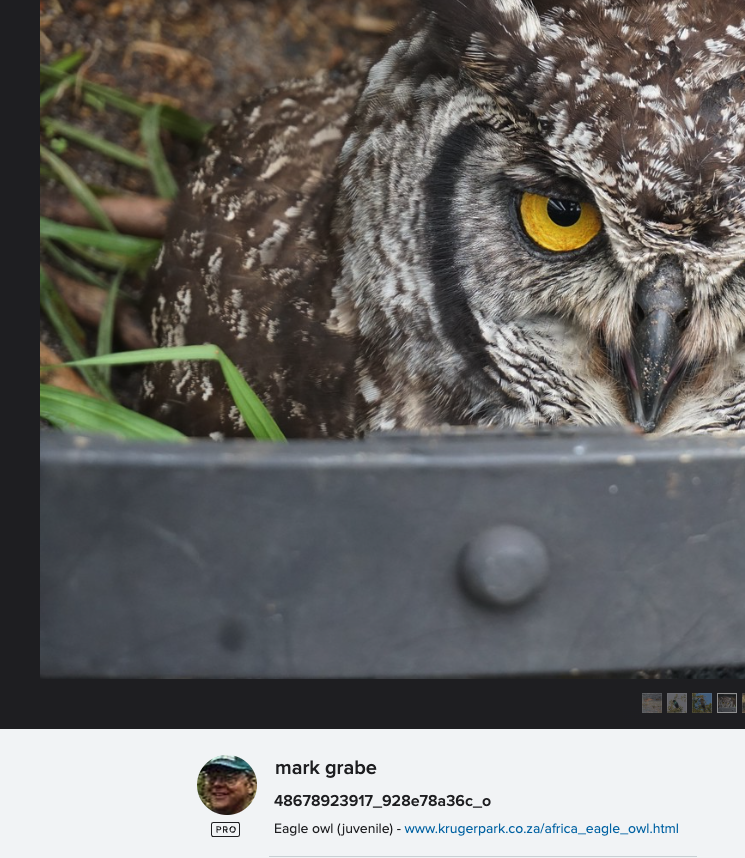
My initial album for students was available through Flickr, and you can take a look if interested. To increase the educational value of this image collection, I found that the “Information” metadata I could attach to each photo would allow me both to identify the animal and provide a clickable link to an online source of information. I used Wikipedia for most of my photos. The idea was that a student could view and download images from this collection and also use the link to learn more. Look below the following image to see the identification and link I added.
There is a blog post somewhere in which I explain how to create a shareable Flickr album with these characteristics. My focus here is different. My Flickr Pro license costs me $70+ a year and I understand that many who might host a collection for a local classroom may not want to spend this much money. My collection is over 20,000 images so I need this type of account. I have been exploring Google Photos to see if I could fashion an alternative.
Google Photo Albums
Google Photos, even at the free level, offers some very useful capabilities and I have been for a day or so trying to duplicate my Flickr photo album with information links for the individual photos. I can’t quite get there because of one simple capability, but perhaps what I can propose is an approach that is close enough to be useful.
The problem is that the HTML necessary to create a link is interpreted within Google as text. Yes, I know it is text, but what I mean is that when I post the same code into the Information field associated with a photo in Flickr the link is active, and this not the case with Google.
There seem to be three possibilities for adding text to a Google photo – Information metadata, text added on top of the photo, and as a comment. None of these options allow active links. So, which among these options makes the best substitute?
The approach I found most useful make use of the comment opportunity allowed when images in a photo album are shared. Comments are not available in a personal album which makes some sense, but a common strategy is to create a personal album and then share. My point – don’t look for the comment option until you first share. So, this technique is an obvious kludge and is not the intended use of comments.
The basic outline of the process follows:
- Create an album with the photos you want to use
- Share using the link option and load the shared version
- Create a comment with what you want to add to individual photos
- Turn comments and collaboration off unless you want others to add photos and additional comments
A Google photo album looks like the following image.
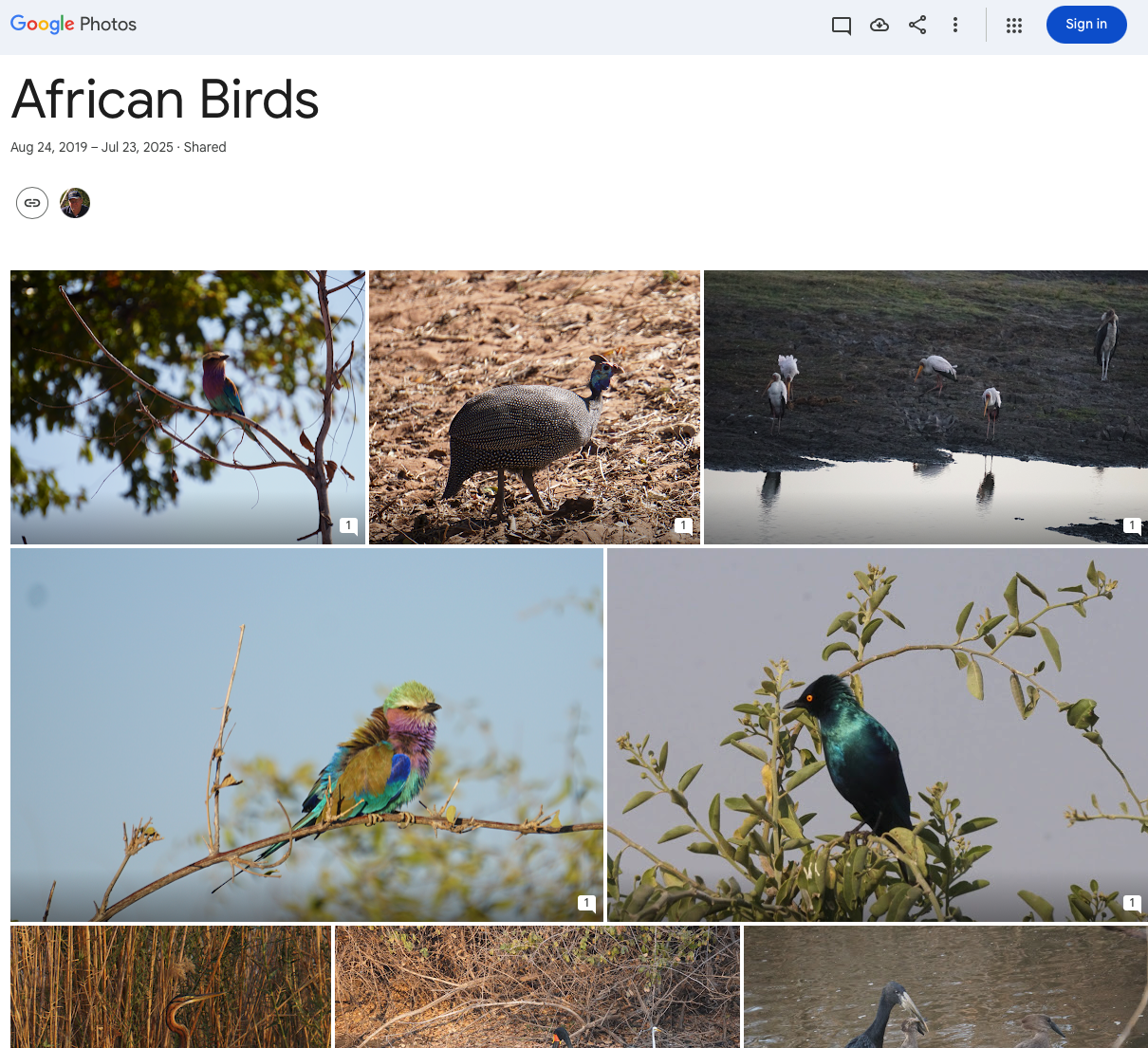
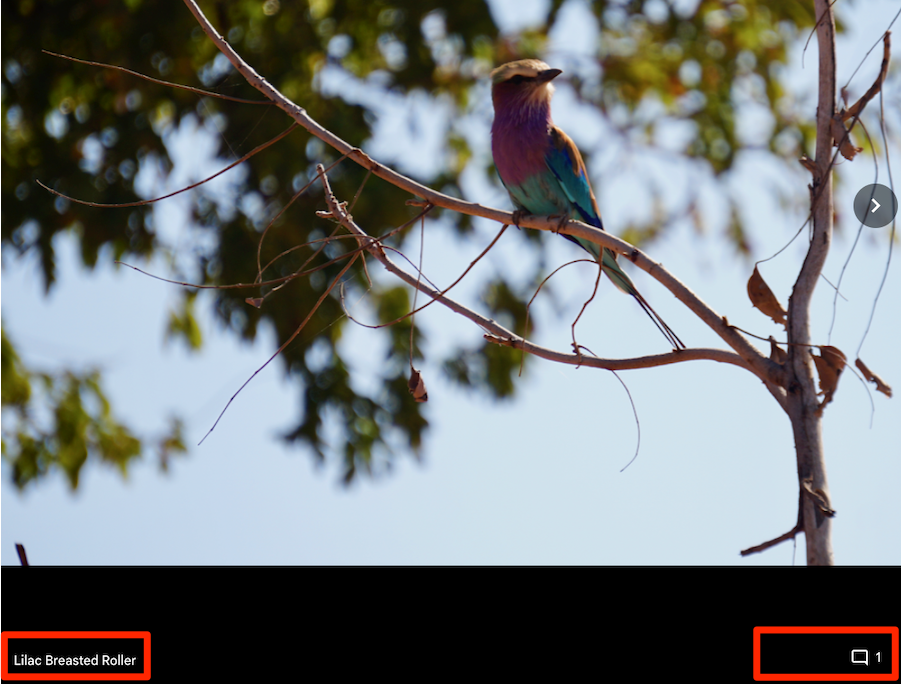
To complete the process of adding Information and a Comment, select one of the images which enlarges that image. The result should look like the following image (see red boxes). Selecting the Comment icon reveals the information that has been attached as a comment (next image).
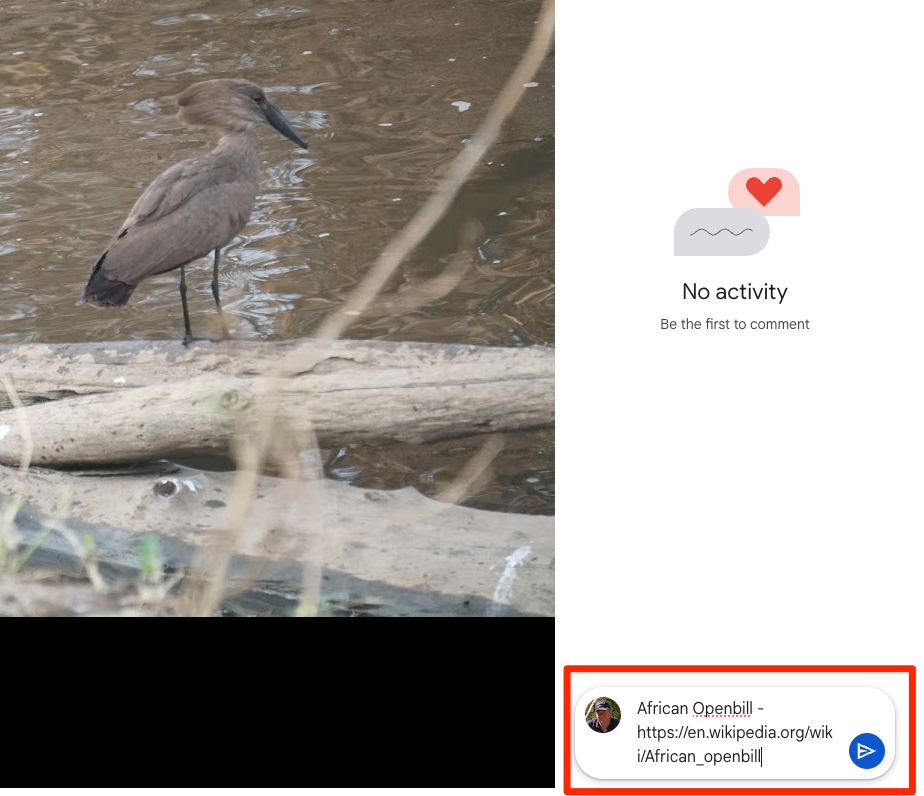
You can enter a substantial amount of information as a comment if you want. You see the issue I have already described above – a link that is included is not active. The text can easily be copied and pasted into a browser to reach the source, but this workaround is not as elegant as you would find in Flickr.
For the end user, the Comment option appears when you click on a shared image. Clicking on an image shows existing comments and a blank field to add your own. I assume most of us do not want folks we don’t know messing with a resource we have provided to the general public and this is the reason you turn commenting off. This will not remove the initial comment you have provided.
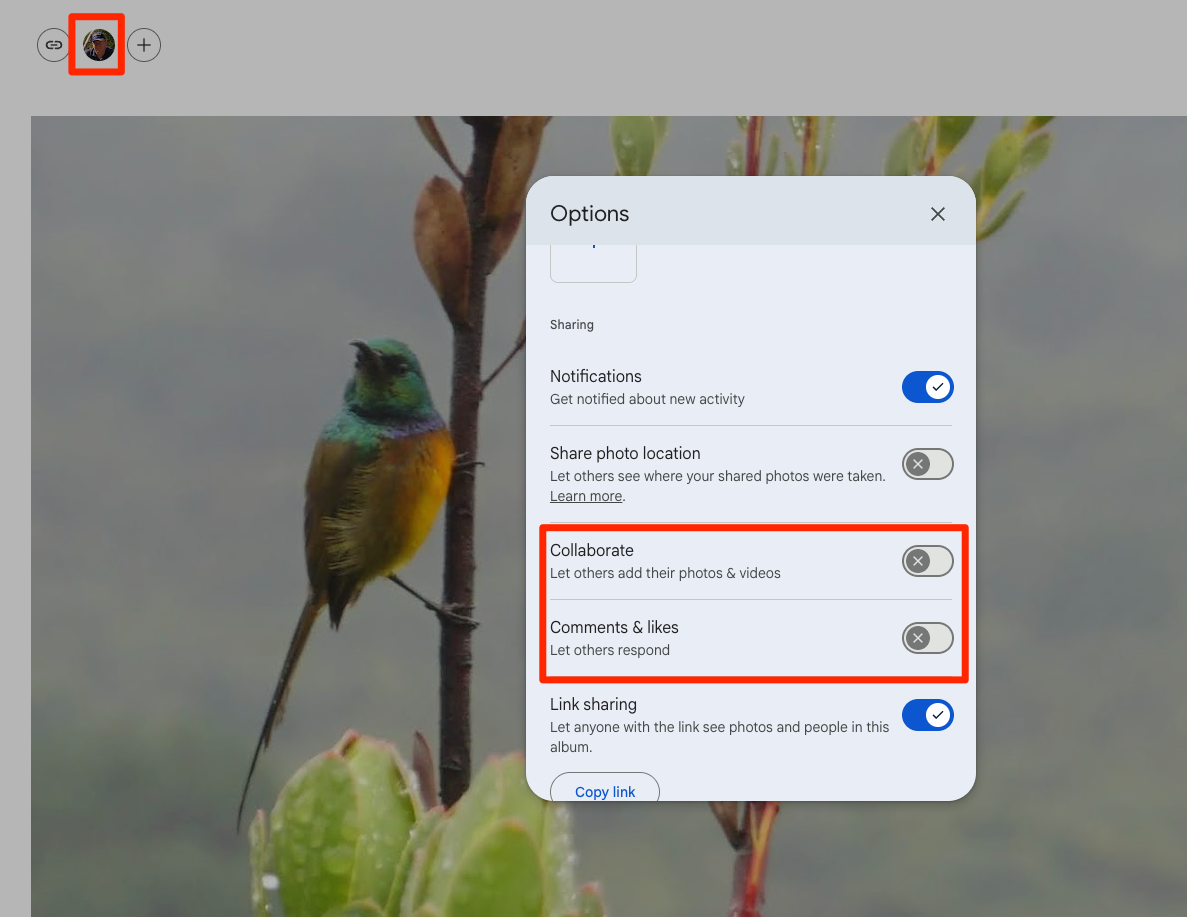
To access the options necessary to block commenting, you first select your own image appearing in the upper right-hand corner of a shared document window (see following image). You then adjust the options to your liking – I prevent collaboration and comments.
A demonstration of a small number of images from my Flickr collection is available for your examination.

You must be logged in to post a comment.