I thought this article might be of interest to educators attempting to do things like hold Twitter chats with young users. Twitter, like many social media services, is not intended for users under the age of 13 and is expected to block these users (COPPA). Attempting to address this expectation and to deal with content generated by underage users even when they are presently older than 13 has created some complexities for the company.
Present sensitivity to security issues makes me crazy. I should probably use more and better passwords, but I don’t. However, I try to be careful with the passwords I use. This is why the situation I describe below has confused me.
I was trying to add a comment to a WordPress.com blog. I try to write at least one comment a day because I think blogs should be two-way. I am a WordPress user (this site), but I use a version available through a server I rent.
So, I write my comment and then I am asked to provide my email address. This is one way bloggers try to limit spam and I do not object to providing my email address. When I try to submit my comment I encounter this page which now asks for a password. I am not going to provide the password for my email account. This can’t be what I am being asked to do, so I keep think I am missing something. This is what the instructions request.
Posted inUncategorized|Comments Off on Security is making me crazy
I purchased an Acer Chromebook Tab 10 and have been exploring its capabilities for about a week. When I bought it, I had to go through CDW to have access, but this is changing and you should be able to find it elsewhere if you are interested.
There are some existing online reviews of this product (Verge, Endgadget, GLearning) so it makes little sense to offer a comprehensive reaction.
My summary:
Intended for K12 market and not as a consumer device.
Works fine, but not special in any way.
Cost is equivalent to low-end iPad and iPad has access to more apps.
My wife’s analysis (she does not object to me spending money on technology) – couldn’t you just do the same thing on the screen of your chromebook?
My analysis – pretty much the same as what you see above. My cost was approx. $380. The tablet was 339, but with tax and shipping, the cost came to approx. $380. If you are a chromebook user, you will be completely at home with this device. It is nothing more, but also nothing less (with the exception of the keyboard), than a reasonable level chromebook. A key question becomes what is it you want from a tablet. In contrast to the comments about whether this is a consumer device, I would ask the same question of anyone. How do consumers use their tablets? I will use this pretty much like I use my iPad Pro. I do very little writing on my iPad. I prefer a keyboard when I write anything of length. I can use the apps or similar apps that I use on my iPad on my chromebook. My personal use of technology is quite extensive, but the number of things I do is fairly limited. The Acer product is certainly not better than my iPad pro and it is the size of the standard iPad. If I had to choose one device, I would choose the iPad pro. I would choose my Chromebook Pixel tablet over this device, but I would make the same choice if I had to select either a high-end chromebook or an iPad. Just to be clear, I used to have an early android tablet and the chromebook tab 10 is far superior.
Is there any reason to recommend that educators push for the Acer Chromebook Tab 10 over the lower end iPad? Since cost is really not much of a factor, I would be hard pressed to make the case for the Chromebook Tablet. It is possible the similarity to the keyboard chromebook when it comes to working within the Google environment is useful. My tablet was immediately populated the same tools I use on my chromebook laptop. To me and to be fair, this is a bit of a stretch. I think students need to be flexible when it comes to technology AND you can just run what you want to run in chrome on an iPad if chrome is your environment of choice.
My personal justification requires a more long-term view. I think it important that there be multiple players in the technology space. I think within a few years the hardware will be largely irrelevant and pretty much all of the software will be run by downloading what is needed as necessary. I don’t think “free” has long-term value and as the population rejects paying for their services through advertising and the sharing of personal information some micro-payment approach will be the way we support developers and content providers. Until then, it is important that there be multiple ways to access online content and services.
Posted inUncategorized|Comments Off on Chromebook tablet
Your iphone has some useful capabilities you likely have not explored. One example is the magnifier. Magnification is an accessibility option. As the name suggests, it allows the user to take advantage of the camera to allow the phone to produce a larger image than would be available unaided. You point that phone at something (e.g., a menu) and the enlarged image appears on the screen.
The magnifier can be located among the accessibility options. As shown below, you turn on the capability as an option and have the opportunity to add auto-brightness which also seems to help visibility. Available accessibility tools are activated and deactivated using three clicks of the home button.
There are situations in which all of us can utilize magnification to get a look at small objects. Cindy came up with this example. We have a long-term interest in Monarch butterflies. Originally, this was because watching and chronicling the life cycle of the Monarch made a great classroom project. Now, the loss of habitat (milkweeds) has endangered the Monarch. We have planted milkweeds on the land we own in northern Wisconsin and we collect caterpillars to rear and release the butterflies. We now involve our grandchildren instead of kids in classrooms. Finding the caterpillars on milkweeds is challenging, but fun. Once located, watching them go through their life cycle is pretty easy.
The magnifier.
Spotting a very young caterpillar can be a challenge. If you examine enough leaves, you can find large caterpillars, but you likely miss many smaller ones without looking carefully. You get an idea of the challenge from looking at the leaf I am holding in my hand. If you look at the leaf below the center vein and just to the right of the blemishes on the leaf, you will see a very young caterpillar.
Here is the same caterpillar using the iPhone magnifier.
Here is an even more highly magnified image showing a caterpillar emerging from an egg.
I understand you could probably generate the same view by taking a picture and then zooming out on the small caterpillar. The magnifier is really not intended for collecting pictures, but for viewing in real time. The magnifier temporarily captures the image to the screen at the magnification you select. We simply captured this image by capturing the screen.
Posted inUncategorized|Comments Off on iPhone magnifier
NPR recently published a summary of some of their investigations and reporting into the issue of young viewers and screen time. The article offers a realistic appraisal combining descriptive data, short summaries of recent research, and popular suggestions for parents.
Posted inUncategorized|Comments Off on Some data and suggestions on screen time
There are so many options in the online world that it is likely for a company offering a service to be able to raise prices beyond a certain point and not expect their users to go elsewhere. This may end up being the case with Padlet. While it offered a solid service of value to many educators, the new pricing model is going to be out of the range of all but the most heavily invested users.
I categorize services such as Padlet as online, social posters. Users or a single author can add elements to this poster around a specific theme. Ryeboard is a new service I would place in this same category. It considers itself in beta and explains that it has only a subset of the tools it hopes to add. In fact, if you follow the development plan you can see the list of proposed/suggested tools and learn which have been elevated to the “to do” list. Just because of the reality of operating costs, I anticipate that Reyboard will eventually charge a fee and I support the need to charge. I just hope they created a tiered model with a reasonable cost to casual users appropriate to occasional use.
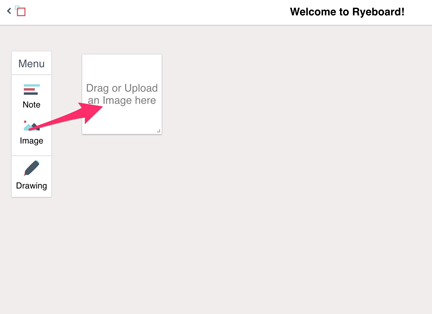
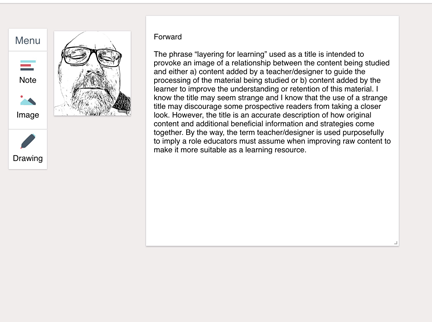
Ryeboard presently offers the opportunity to add notes, images, and drawings to a “poster”. You drag the icon from the menu into this space to position it as desired. Very simple if what you want to do requires only basic functionality.
This image may give you a better idea of how elements are added and positioned.
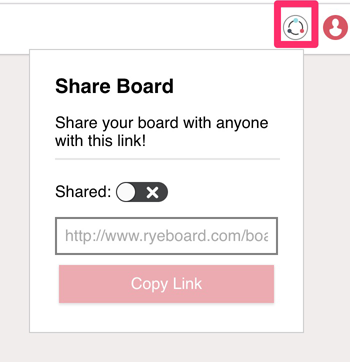
To provide a measure of security, a board (poster) is shared by way of a code that is given to those the host wants to have involved.
Posted inUncategorized|Taggedposter|Comments Off on Ryeboard – a new online poster option
We use cookies to ensure that we give you the best experience on our website. If you continue to use this site we will assume that you are happy with it.
You can revoke your consent any time using the Revoke consent button.



You must be logged in to post a comment.