iMovie for iOS – Magic Movie

I haven’t used iMovie in a long time so when a new version for iOS was released promising a Magic Movie maker I had to give it a try. The update added two new features – Magic Movie and Storyboards. The word “magic” intrigued me and I thoughts of shoveling in a bunch of media files and having a program create an imaginative creation from these inputs. If you are a Google Photos user, you know this service randomly creates interesting “highlights reels” from images the AI selects from your collection. I imagined Magic Movie would do something similar, but better. This turned out not to be the case, but the Magic Movie option is still pretty cool.

The hype for Magic Movie does mention AI and suggests you can identify a collection of clips and photos from your account and it will create a movie. This is kind of true, but you do end up taking many actions and making many decisions to create the final product. We just returned from spending the winter months in Hawaii and I have hundreds of photos and video clips. These circumstances seemed perfect to see what Magic Movie could do. I decided to concentrate on whale watching based on two excursions with this purpose.

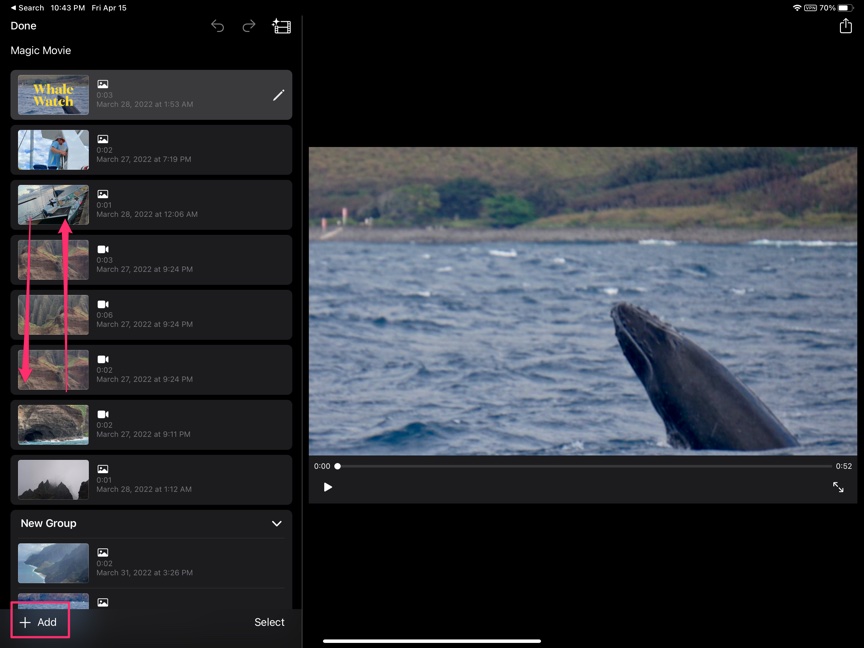
The Magic Movie process is pretty simple. You do identify the images and clips you want to include in a movie. Magic Movie does not really create a story from these clips. Once uploaded, you order the clips in a way that makes sense. The clips appear in an order based I think on the times the images were captured. I suppose this order is the assumed order of your story, but in my case combining two different trips and adding specific photos afterward (e.g., a picture of the boat), the times of the images did not tell a story. You drag thumbnails of the clips into the order you want. The AI will select a display length for each click and for the videos this will be quite short. You can expand the time for the videos to more of their actual length if you want. You also can add additional material once you see what the first effort looks like. The image below shows the work area – the screen will play the movie or display a specific clip. The left side of the work window shows the thumbnails that can reorder. The + button at the bottom allows you to add new content. You can add text on screens you select and add stock music or narration in the background.
The following video was my finished product. It is about a minute long and could have been stretched to about double this length by playing all videos included to full length. iMovie is not a tool for modifying the individual clips or images so any adjustments would have to be made before the content was included in the movie. No images were adjusted for this demo so some images may be tilted. If I knew I was going to create a composite from my video clips, I would have taken everything in the horizontal orientation. You will see that the alignment of the clips varies, but iMovie accepts both orientations, The process goes very quickly and is a convenient way to integrate content you have selected.

Magic Movie is easy to learn and use and classroom use would not require that students spend a great deal of time learning the software.

Loading

Posted in Uncategorized | Comments Off on iMovie for iOS – Magic Movie

Jackie Robinson Day

It has been 75 years since Jackie Robinson was the first black man to play in the major leagues. Today he is remembered for initiating this advance for baseball and the country.

Loading

Posted in Uncategorized | Comments Off on Jackie Robinson Day

When lateral reading fails

Rather than attempt to determine credibility of a source from the source, recent advice is to open a second tab and search for other positions on the same topic. This approach is recommended because web content is becoming more sophisticated so the things on a given site to look for can be shaped to be convincing. The fact-check approach has been labelled lateral reading.

I feed birds and I thought I had read that bird feeders can spread this disease. However, I read a contrary position in our local paper which is typically regarded as a credible source. A few hours later my said I should take down our feeder and pointed me to this source. This report comes from a different local news source also with a good reputation.

What is a careful reader to do?

P.S. – We have since decided to move our feeders inside. We live close to a nature center which has found dead owls and the proximity to birds dying from the bird flu made the decision for us.

Loading

Posted in Uncategorized | Comments Off on When lateral reading fails

Always skills to learn

I have been rereading Cohn’s Skim, Dive, Surface. This book advocates for the preparation of learners to read and write in a digital format challenging the position of many that students are better off with paper texts. The author argues the reality of learners need to process digital media outside of school settings and suggests that educators should not rely on students heavy use of digital gadgets as providing the necessary preparation.

The author reports asking her students if they had experience using pdf tools to highlight and annotate assigned content. She reports that 30% responded positively. Her point was that educators (she teaches at a university) should not assume that computer experienced students have skills appropriate to benefitting from exposure to such assignments. It struck me that this question should be asked by more educators assigning digital content. I assign pdfs all of the time, but I have never thought to ask how students engage with this content.

Cohn, J. (2021). Skim, dive, surface: Teaching digital reading. West Virginia University Press.

Loading

Posted in Uncategorized | Comments Off on Always skills to learn

Interview with Matt Mullenweg – WordPress

I thought readers might be interested in this interview with Matt Mullenweg of Automattic. Matt is the codeveloper of WordPress which is the blog and content management platform I use. You can read or listen to this interview. The discussion covers their open source effort and personal control of content. Over 40% of web sites run WordPress.

Loading

Posted in Uncategorized | Comments Off on Interview with Matt Mullenweg – WordPress

ScreenPal – BETA is the right designation

ScreencastOmatic has a new product that has great promise when they can figure out how to improve the app to match its goal. The project is called ScreenPal and the idea is that a browser extension could allow the user to add a short screencast to any text box. The limitation I note and they recognize is that it does not work with all services with text entry windows (e.g., Google docs, sheets, and slides). It would work with WordPress (this blog) and I can see myself using it in the future. It does work with GMail and that is what I used to generate the following demo. It also works with Twitter which does offer some interesting possibilities.

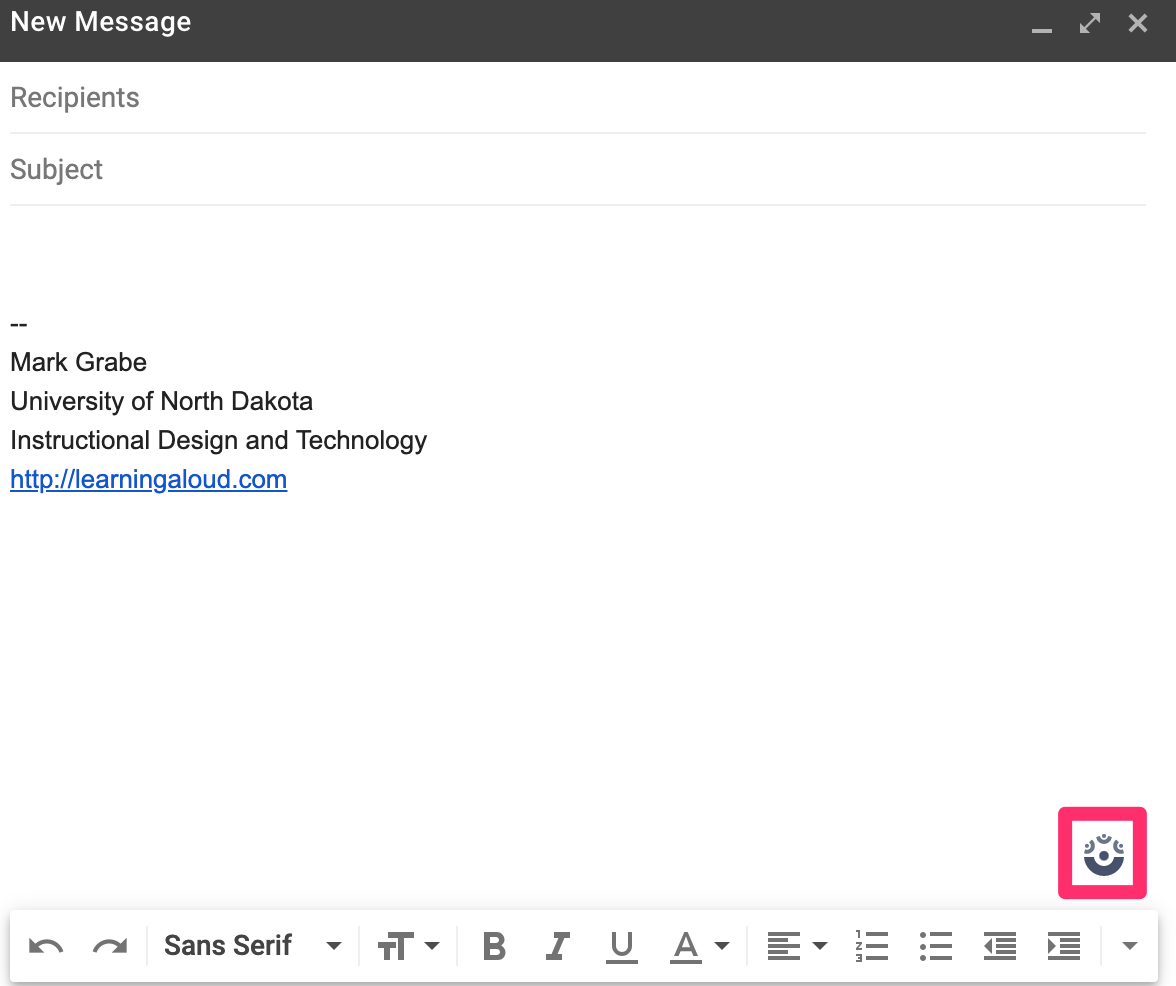
So, you first need to install ScreenPal as a chrome extension. It works with Chrome, Brave, and MicroSoft Edge. Once installed and activated by creating an account, the following symbol should appear when you click in a text box. See red box in image that follows.

This icon activates the screencasting process.

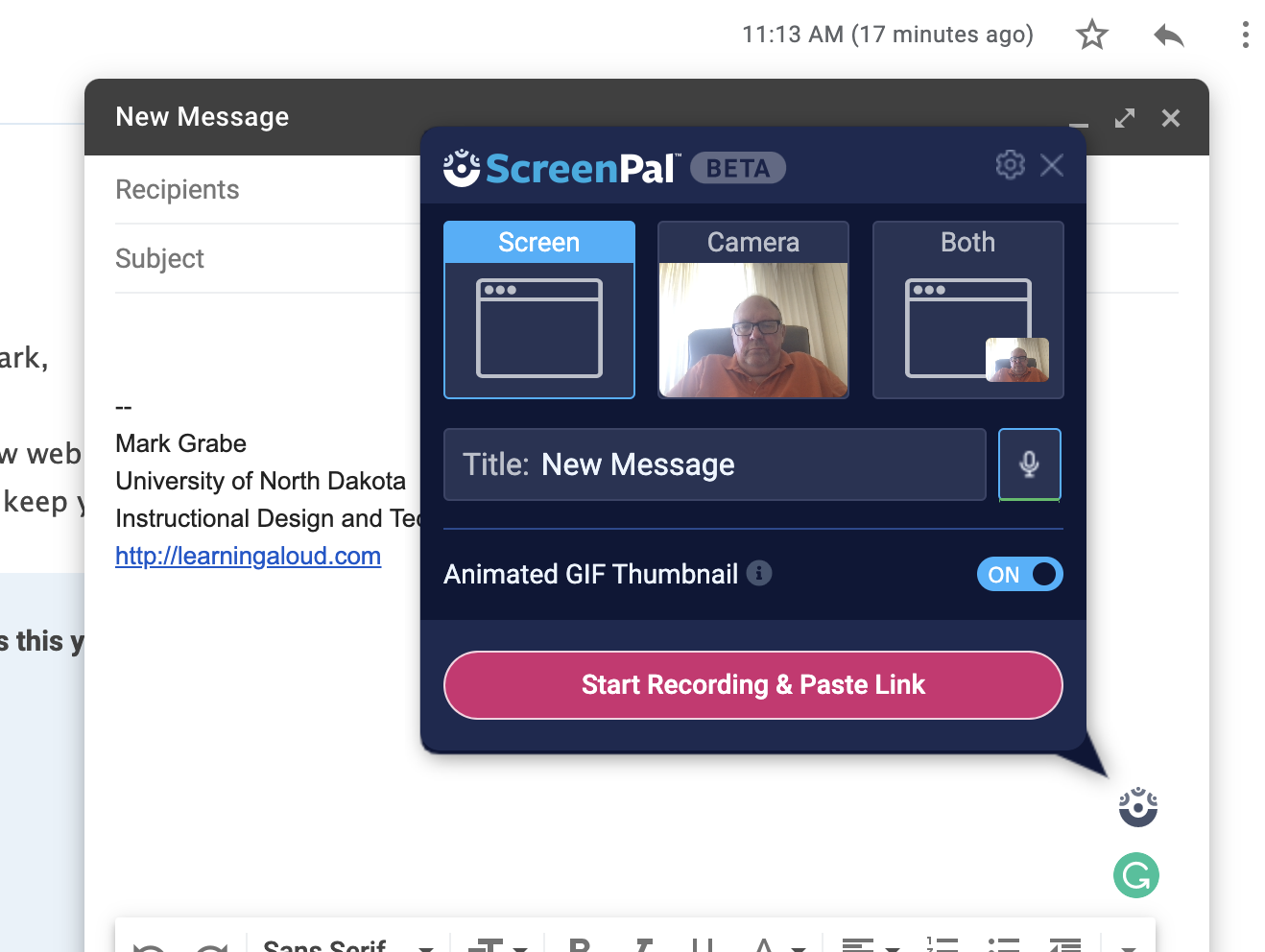
You have three options – camera, screen, or a combination (your image and the screen option you select).

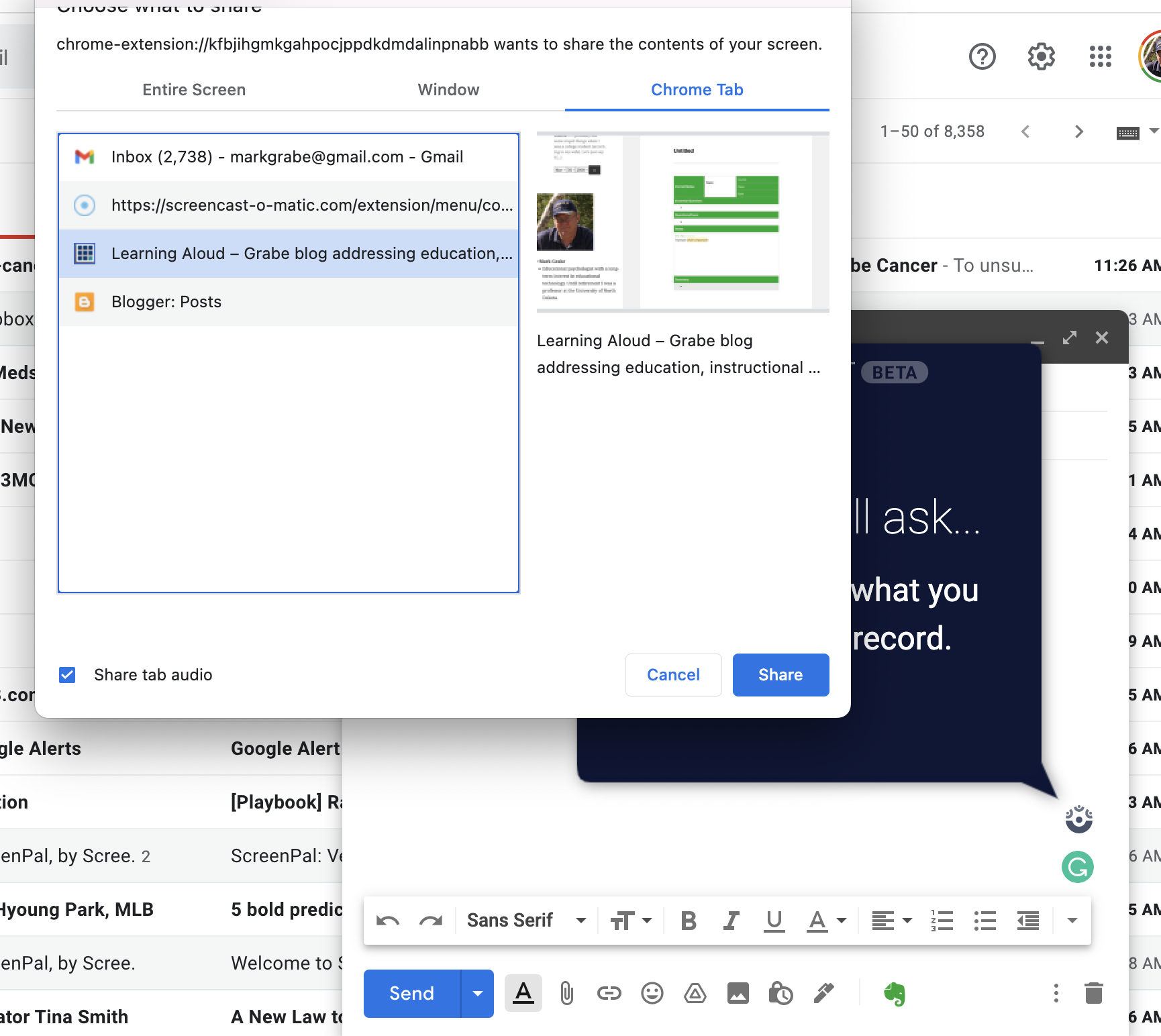
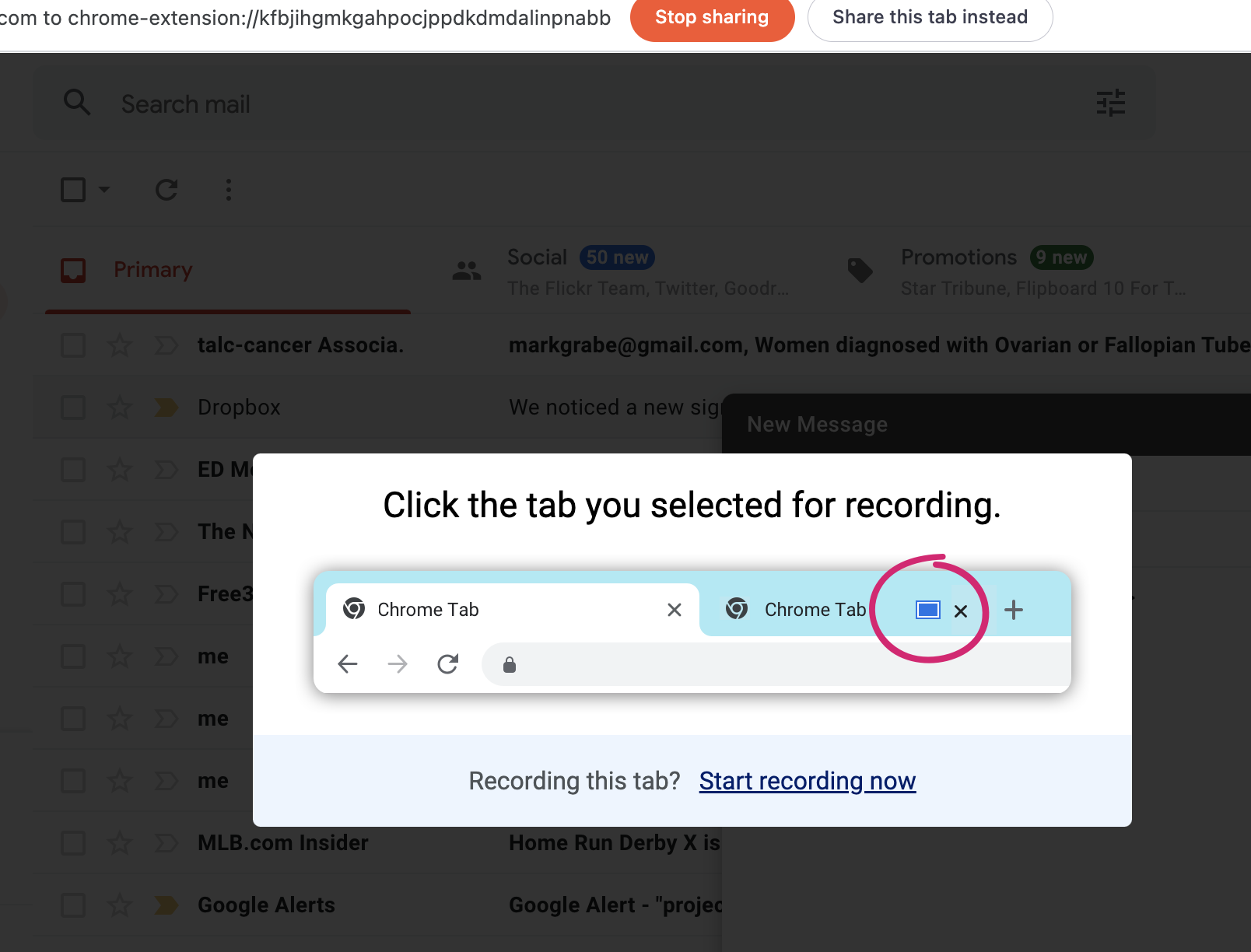
You could just add a video to the email or in the case I see as most useful you can select a different tab to offer comment on what appears in that tab. When you are ready start recording and then use this blue box to stop recording.

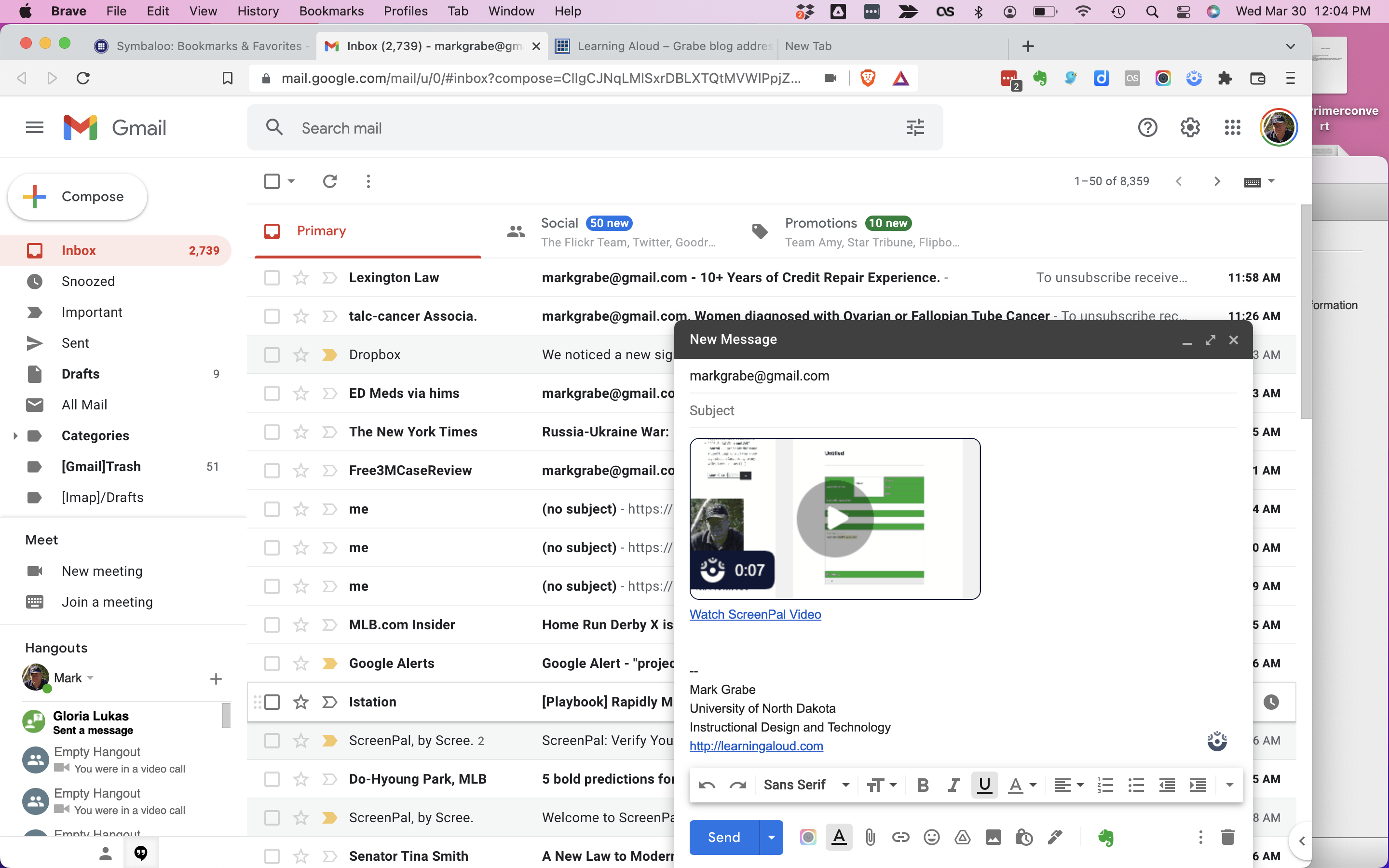
Finally, the link and a GIF to the video will appear in the text window.

The video is also stored online as is the case with the original ScreenOmatic videos. ScreenPal is presently free. I see using it personally as a way to add short video comments in blog posts. At present, I include longer videos that I first store in YouTube. ScreenPal kind of works in a similar way, but takes care of the details automatically.

Loading

Posted in Uncategorized | Comments Off on ScreenPal – BETA is the right designation