This story from NPR describes some of the steps states are allowing schools to take so that someone is available to fill in as a substitute for a teacher. In some cases qualifications have been reduced to someone with a high school diploma. The concerns for learning at a distance seem minor to me in comparison to whether any learning will occur when pretty much anyone can sit at the teacher’s desk. At some point, it appears that actions are taking to provide child care rather than education.
Schools and hospitals under present conditions share a common challenge. The capacity of these resources are not based on the number of beds or desks, but the staff available to fill needed functions.
Posted inUncategorized|Comments Off on Who ends up in classrooms now
I thought this page from Media Shark offered a nice summary of the two types of behavioral targeting of ads. Behavioral targeting means that your online behaviors – what you view, how long you view, what you like, etc. – can be collected to gain insights into your interests and offer you information it appears might interest or influence you.
There are two types of behavioral targeting – contextual and cross-platform. With contextual targeting, a site collects information on your behaviors while on that site and in some way responds based on an interpretation of this behavior. For example, if you are searching for a given product while on Amazon, Amazon assumes you have an interest in a specific type of product and can offer you additional options. This seems pretty rational and easy to understand. Note however, that similar behaviors might be used by Facebook as you spend time on this platform to categorize you and target ads or prioritize your news feed based on this accumulated information about your activities.
Cross-platform targeting means your behavior across the internet can be aggregated and used to classify you in different ways. An ad service can collect and use this information (placing users in different categories) to offer internet services a way to provide targeted ads to individuals from these specific categories. For example, the Google ads you may see on this blog work in this fashion.
Information about your online behavior is often collected in files stored on the devices of Internet users as cookies. You may have heard of first-party and third-party cookies. First-party cookies store information related to a given site and use this information when a user accesses this site. Third-party cookies can collect information across sites and this information can be used by sites not collecting much of this information. Some services allow the blocking of third-party cookies while allowing first-party cookies. There is some rationale for this approach. It may make some sense that you allow first-party cookies as a way to compensate a site for using its services, but object to third-party cookies that collect information about you from sites you are not compensating with data based on your attention and activities.
Posted inUncategorized|Taggedads|Comments Off on Behavioral targeting – contextual and cross-platform
Maybe not the best title. Your Chromebook may be working just fine, but if you have had it for a while you will want to pay attention to the “no more chrome updates date”. This article from Chrome expert Kevin Tofel explains this date and the options if you find your device working just fine after this date passes.
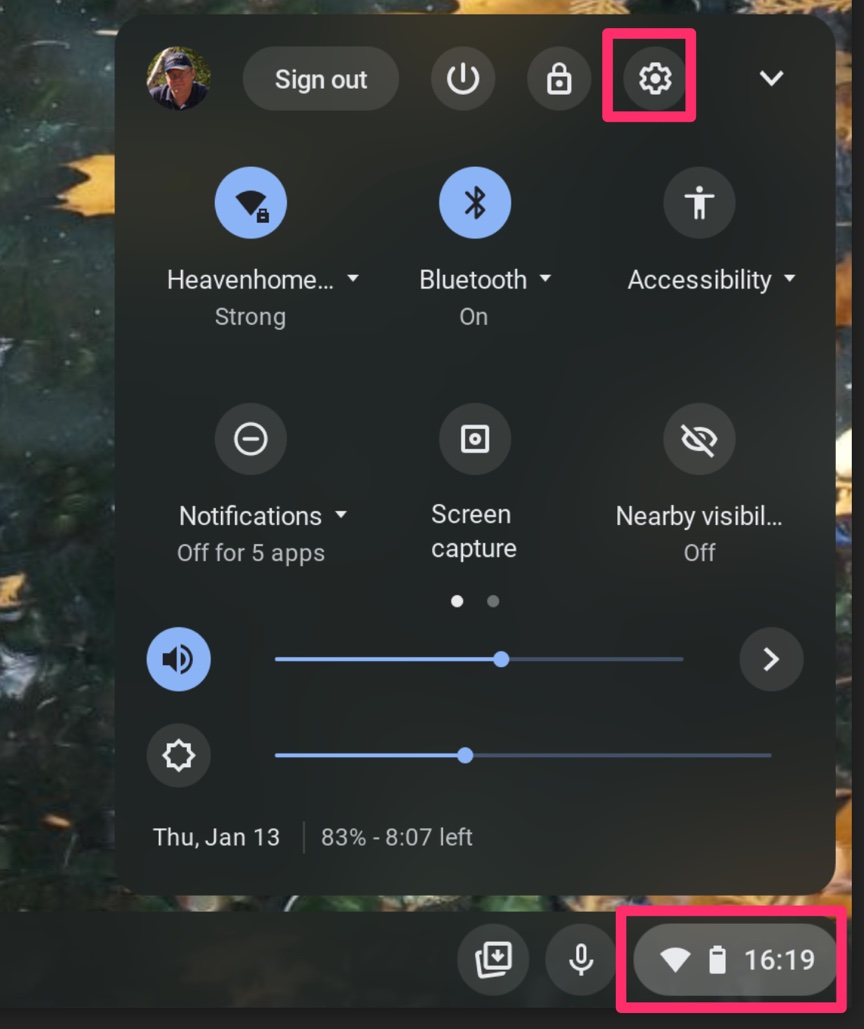
Your chromebook will tell you what this date is. If you know the date your purchased your device there are other ways to get this information, but the following works fine. I have a Google Pixel Chromebook, but I am not certain when it was purchased. Here is how to find the final update date.
You start by going to the popup in the lower right-hand corner of the screen. This is where you would shut down your computer. Select the gear icon.
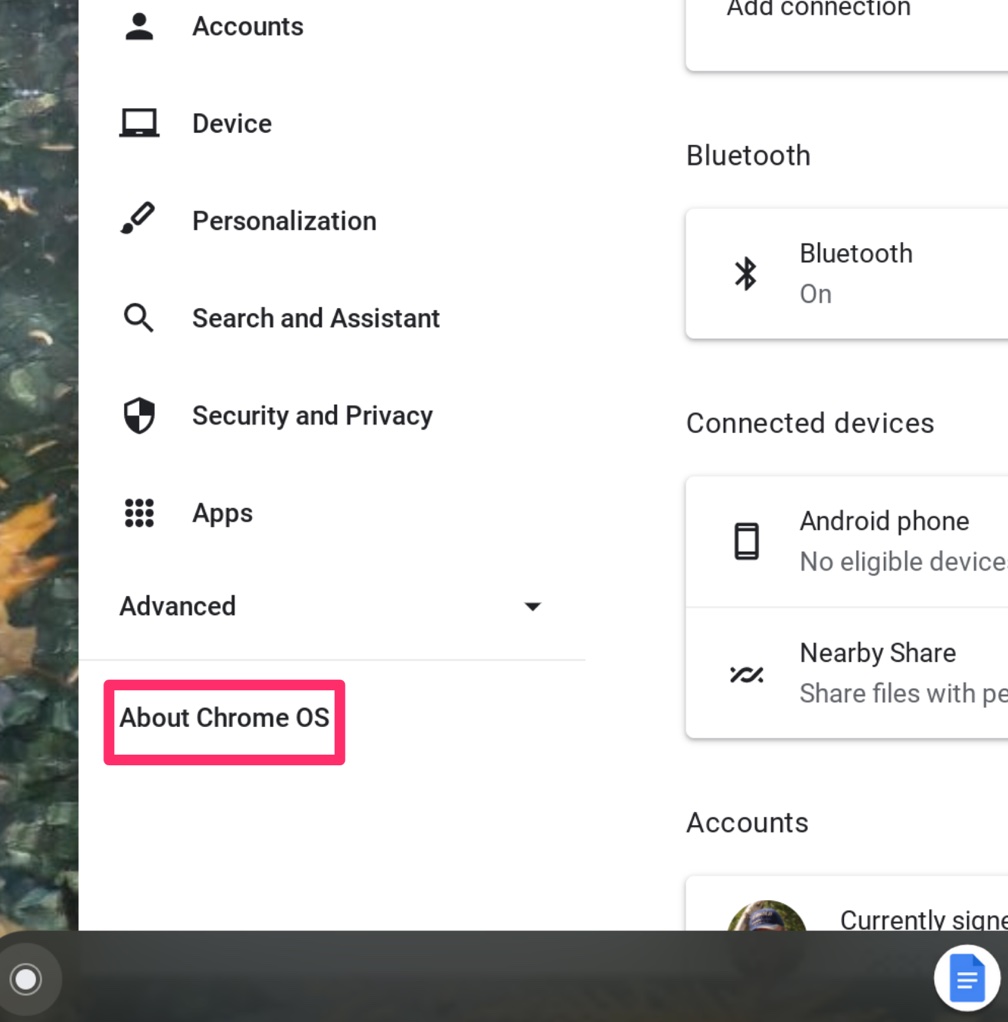
The gear icon will open a screen of information. From this display, select About Chrome OS.
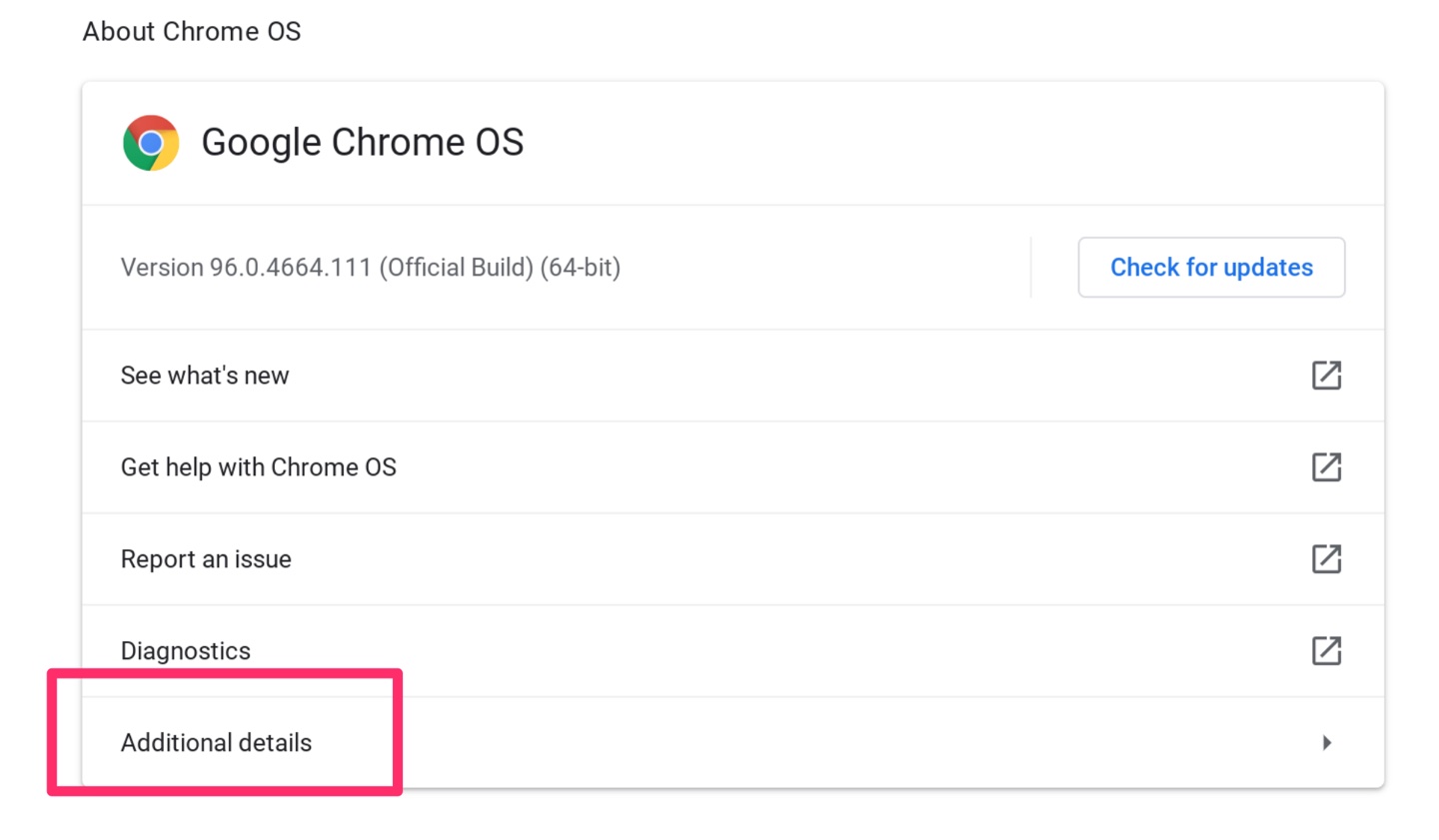
The About link should reveal the following options about Chrome OS and it turns out other stuff. Select Additional Detail.
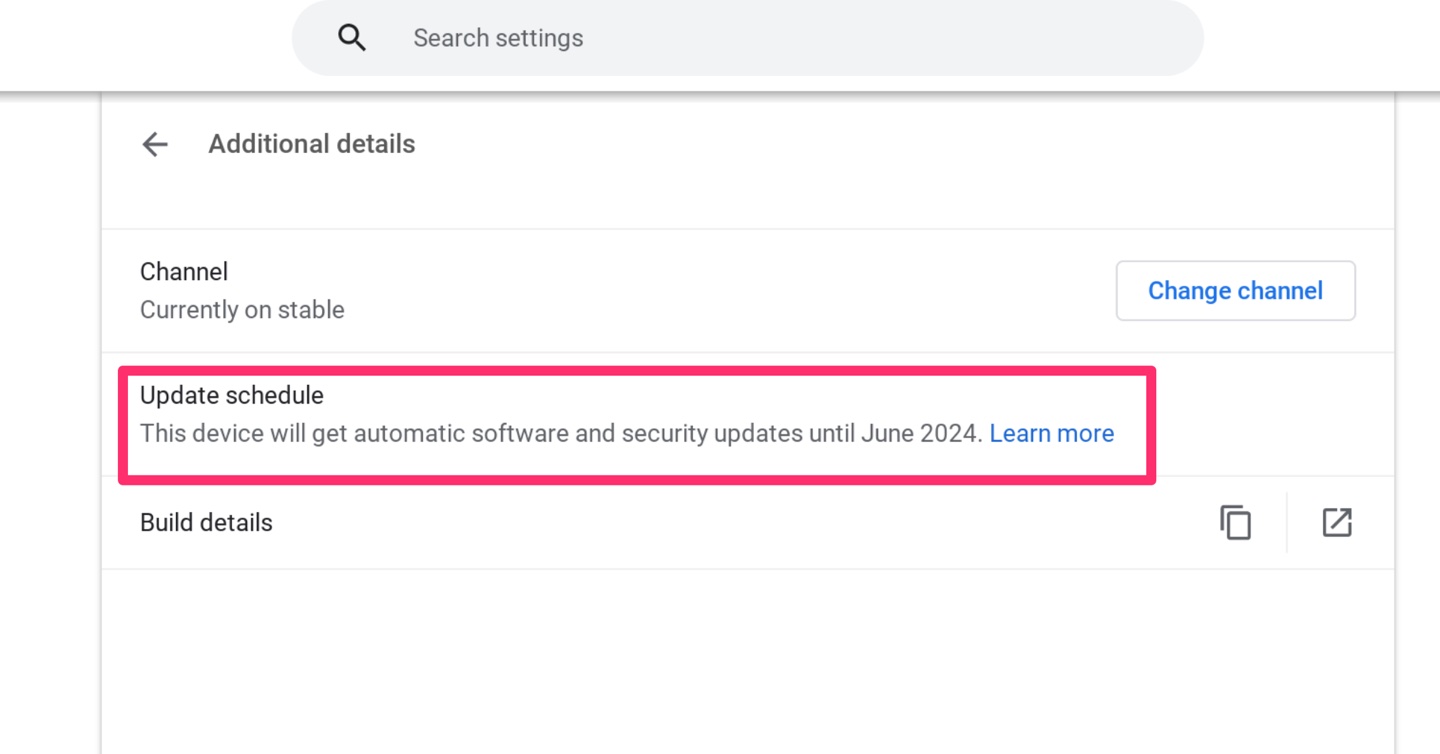
You should now see the information you are looking for under Update Schedule. As you can see, I should be able to receive updates until June 2024.
I have had my machine long enough that I will likely update it before this date, but it is reassuring to know my core OS will be current until then.
Posted inUncategorized|Taggedchrome|Comments Off on No more updates for your Chromebook date
Most technology users probably have some and probably several online services with a combination of free and paid services. My paid services are Apple iCloud and Google One. The free services I can access are Dropbox and Box. I am committed to online storage at a reasonable price because I trust the companies I use to backup by backups far better than I can. This post is more about managing online storage to match the amount of storage I need. I understand my iCloud and Google One accounts are somewhat redundant, but I am too lazy to try to untangle what I have stored where. This post is focused on Google One.
Google One is as the name implies the storage service automatically part of being a Google user. Everyone with an account (e.g., anyone who uses Gmail) has 15 gigabytes of free storage. If all you use Google for is email, this would probably be enough, but it is easy to exceed this limit if you use Photos or use Google Drive. I make use of Google Sites for my classes and Blogger for my travel blog. Content from these uses counts against my Google limit. I also store or backup content from other online activities in Google Drive (e.g., this blog). I pay $2 a month for another 100 Gigabytes.
Google offers a convenient page for learning about Google One, managing what you store there, and upgrading should you want more space. This post explores the management feature allowing you to delete content you decide is unnecessary.
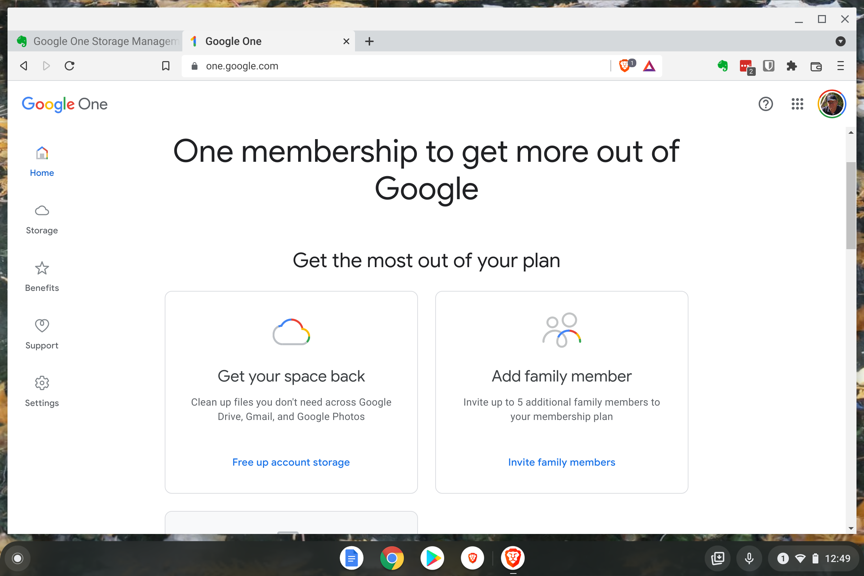
When you connect to the Google One page you should easily locate the section that provides information about your storage levels and provides a way to delete content you decide is not necessary.
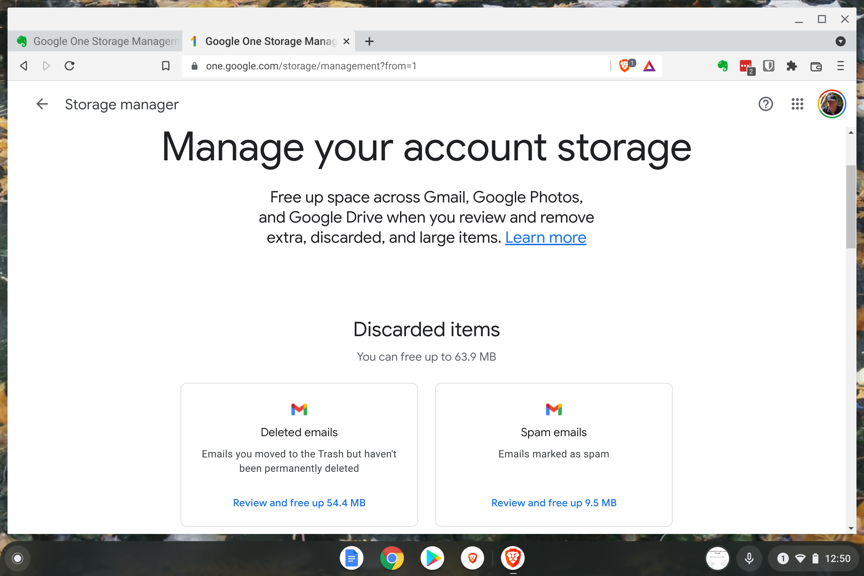
The amount of content the service guesses you might want to delete is identified for you. For example, my Gmail has a folder that is automatically sent email Google or I have identified as Spam. This folder continues to accumulate content because I don’t spend much time looking at what is there for the purpose of deleting this content. As you can see in the image below, One provides a link that allows me to review this content and delete it if desired.
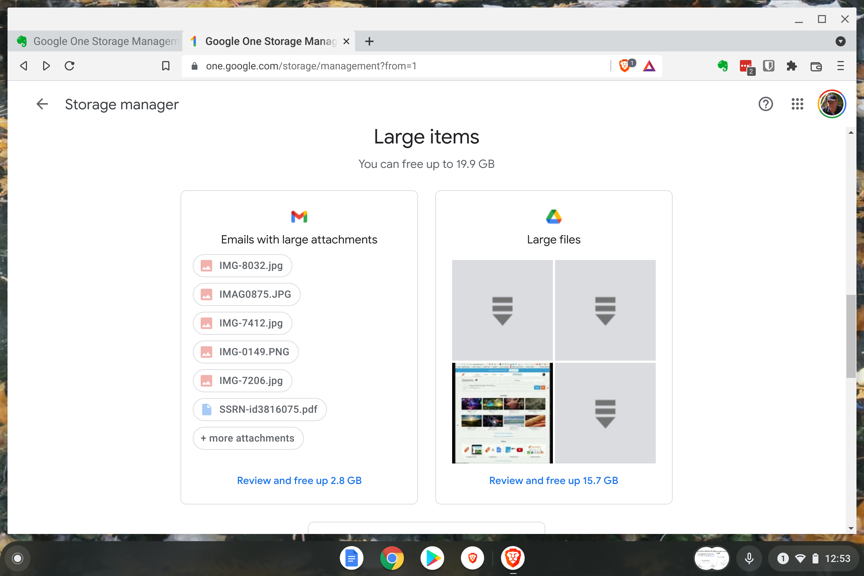
Of course, the amount of space required by email, spam or not, is trivial. This is why Google originally suggested you never had to worry about deleting email. My biggest storage need is for the backups of my multiple blogs (hosted on Bluehost, but I use a backup service to save content monthly to Google). Here is where I could probably get rid of gigabytes of content if I thought it important to do. I don’t at present because I have plenty of space and I am uncertain if I have an incremental backup or not. Images and videos would be a good place to start if you want to explore file management options. If you have an automatic photo backup option active on your phone, you probably have files that you have no interest in keeping.
I feel some satisfaction in knowing I send Google some money. I use the Brave browser that blocks the Google ads that would appear for privacy reasons and supporting the services Google provides at no cost seems only fair.
Consider this a general admonition to learn to use a password manager and a specific comment on such manager – Bitwarden. I have an account with a different manager (LastPass), but Bitwarden is available at no cost and I wanted to explore for myself just how easy it was to use. This investigation came about after online discussion I had with an ex-LastPass user who objected to a change LastPass had made in its pricing model. LastPass still has a free version, but this version is only available for one category of device (phone, laptop, computer) and this makes it impractical for most of us who use multiple types of devices to stick with the free version. Bitwarden has a personal paid version ($10 a year) that offers some premium features, but the free version seems perfectly acceptable to me. Ten dollars is significantly less than the amount I pay for LastPass so some may consider exporting their collection of passwords and migrating to Bitwarden.
I will not attempt to provide a complete tutorial here because Bitwarden offers some great video tutorials and why duplicate their work.
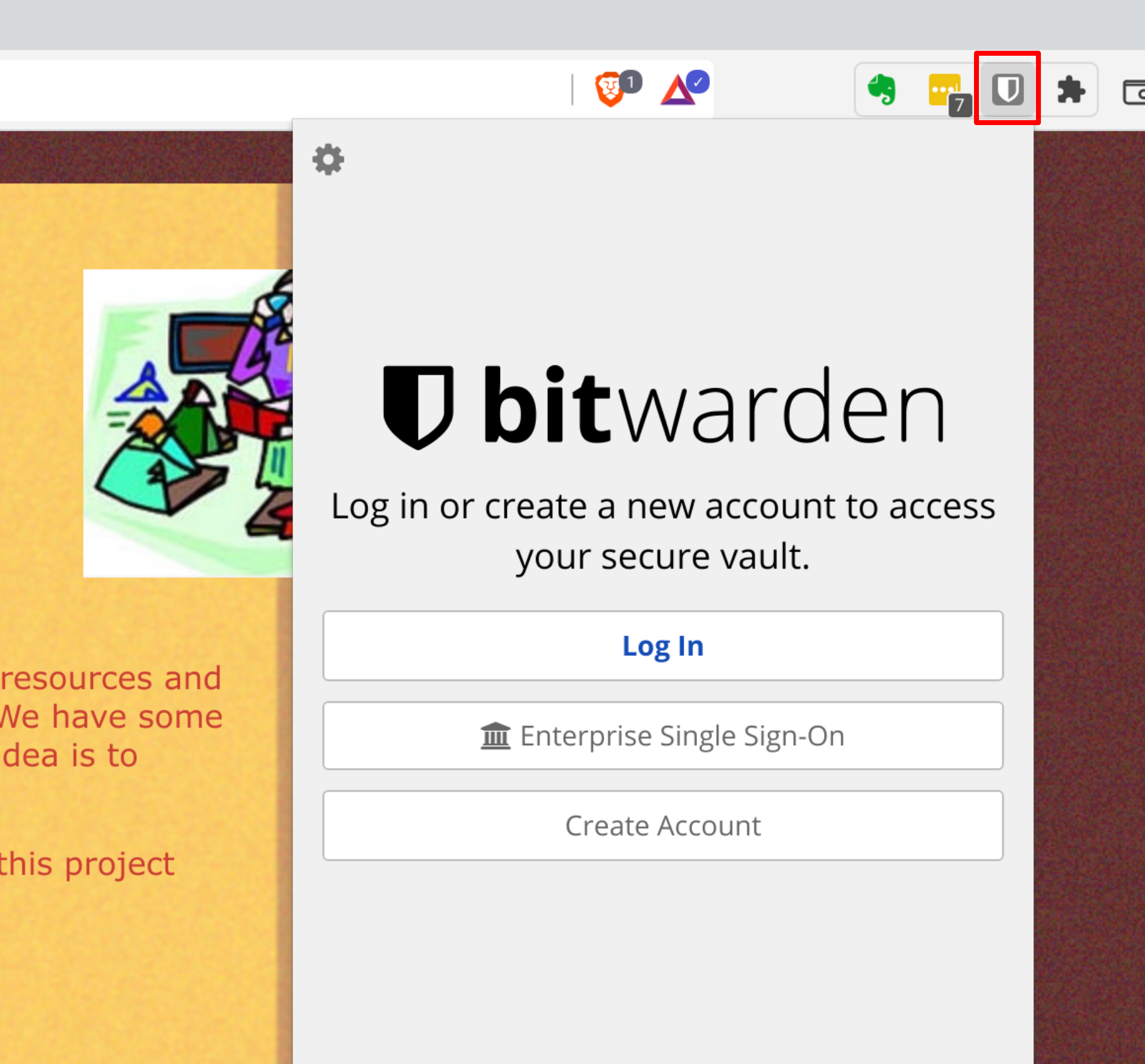
Bitwarden functions as an app or a browser based extension. You need a general account (the online system that allows you to synch multiple devices) and then whatever number of apps and browser extensions you find necessary. I rely on browser extensions.
The key to understanding password managers is to understand that you want lengthy and complex passwords and you want a unique password of this type for each account you access. With a passward manager you need to learn (remember or store in a secret place) one such password and then you use the manager to remember the other complex passwords for you.
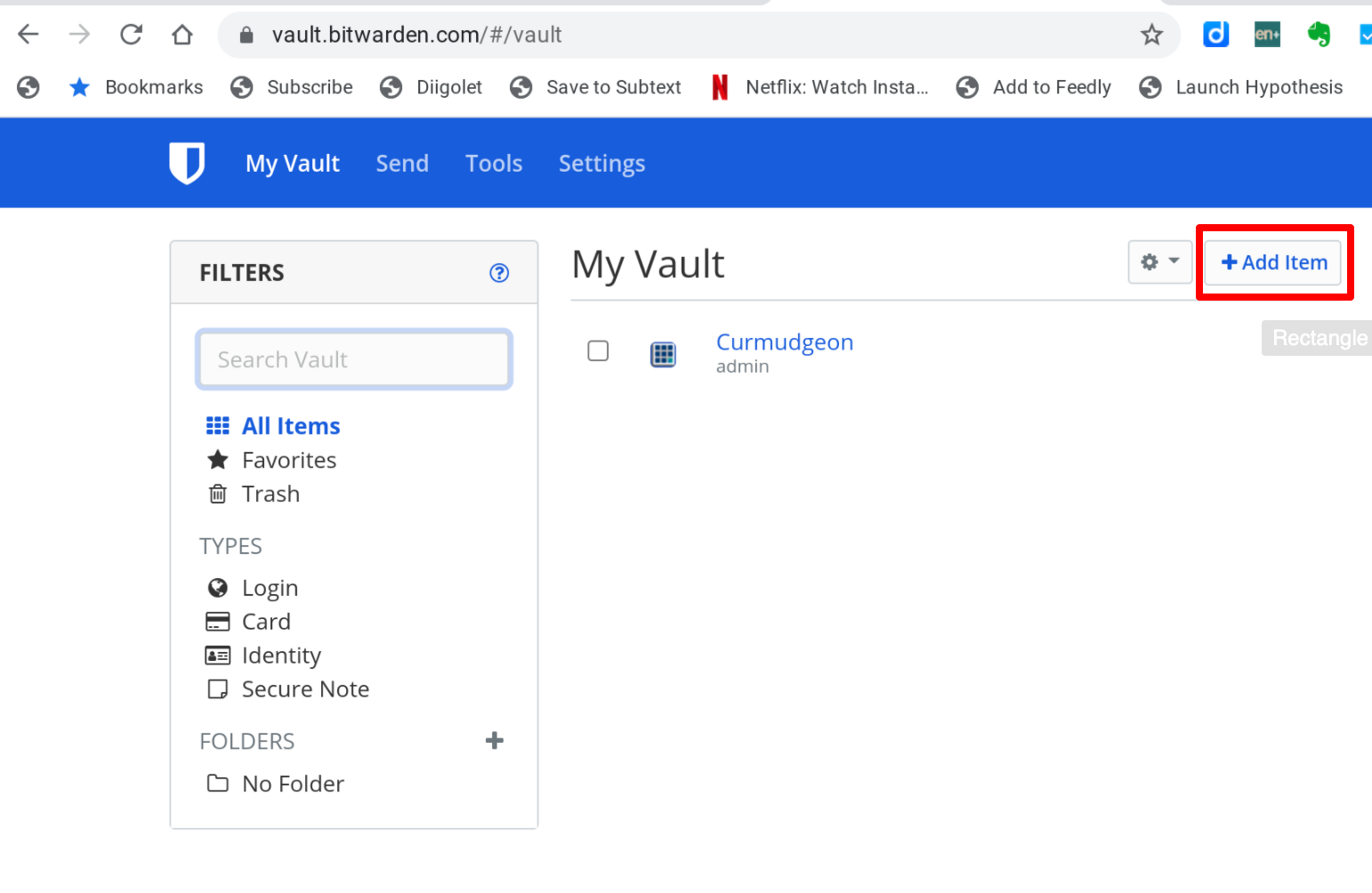
The general storage site for such passwords looks like this. This where you add items to your collection. You can launch accounts from here or the manager will launch items automatically if the manager is active when you go to a site that demands a password.
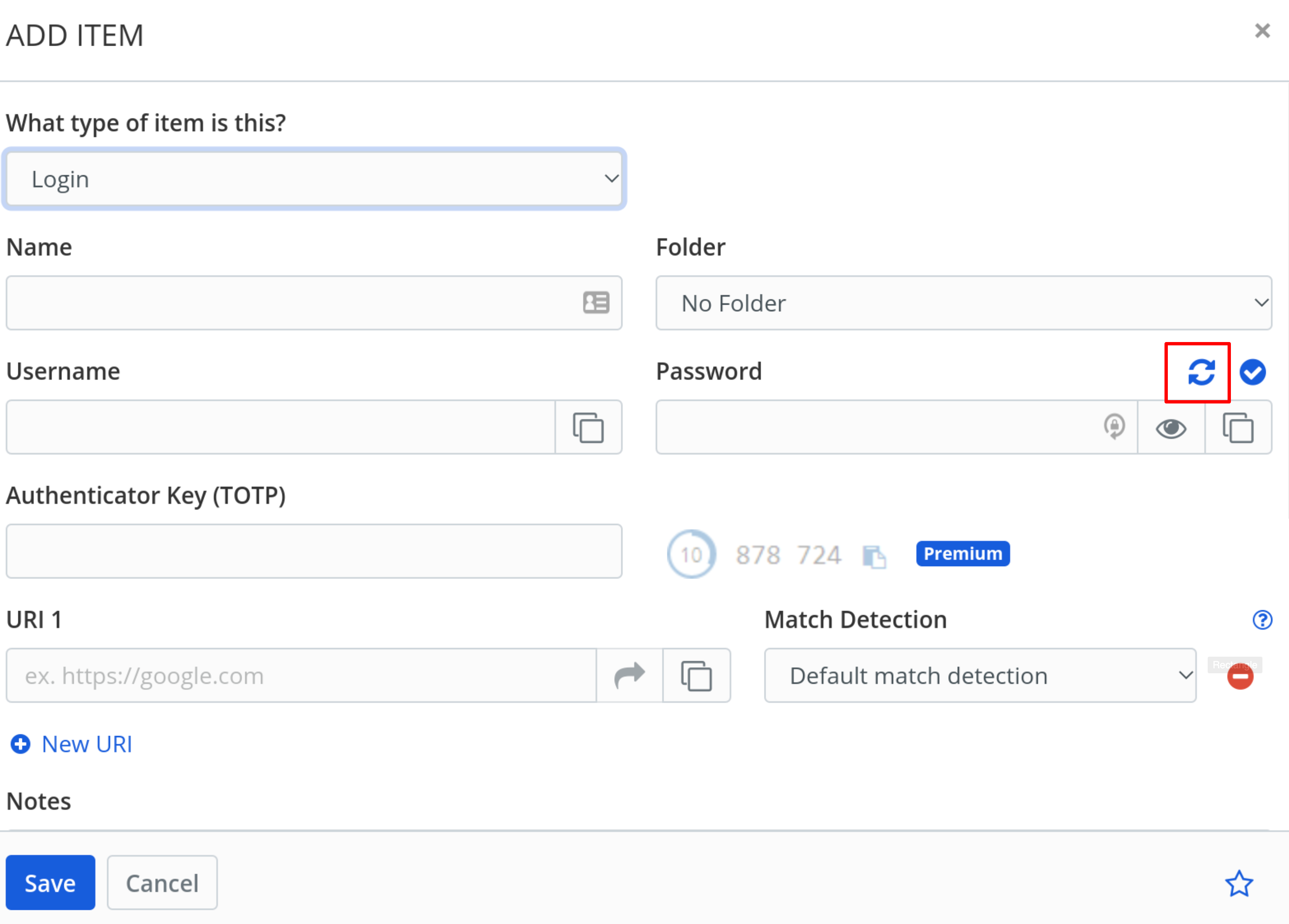
One nice feature of a password manager is the option of you asking it to generate a complex password for you (see the icon enclosed in the red box below). You likely already have accounts with existing passwords so one solution is to create the new item in the password manager, connect to the existing account with the old password, and then changing the password of that account to match the password created in the password manager. Finally save and then test the new item from the password manager. Yes, there may seem an element of risk in this process, but I assume you know the old password and have the new password (unsaved) in the manager and temporarily saved if you copy and paste it to create the new password on the site you want to update.
Start slowly if you feel uncertain of the process. Use one site with an existing password, upgrade the password in the manager, and then see if you the site works with the new password and not the old.
We often end up giving ourselves technology Christmas presents. This year it was the 15 inch Amazon Show. At $250 or so, this is a very impressive device. The quality of images and video is great and of course, you can ask questions to search.
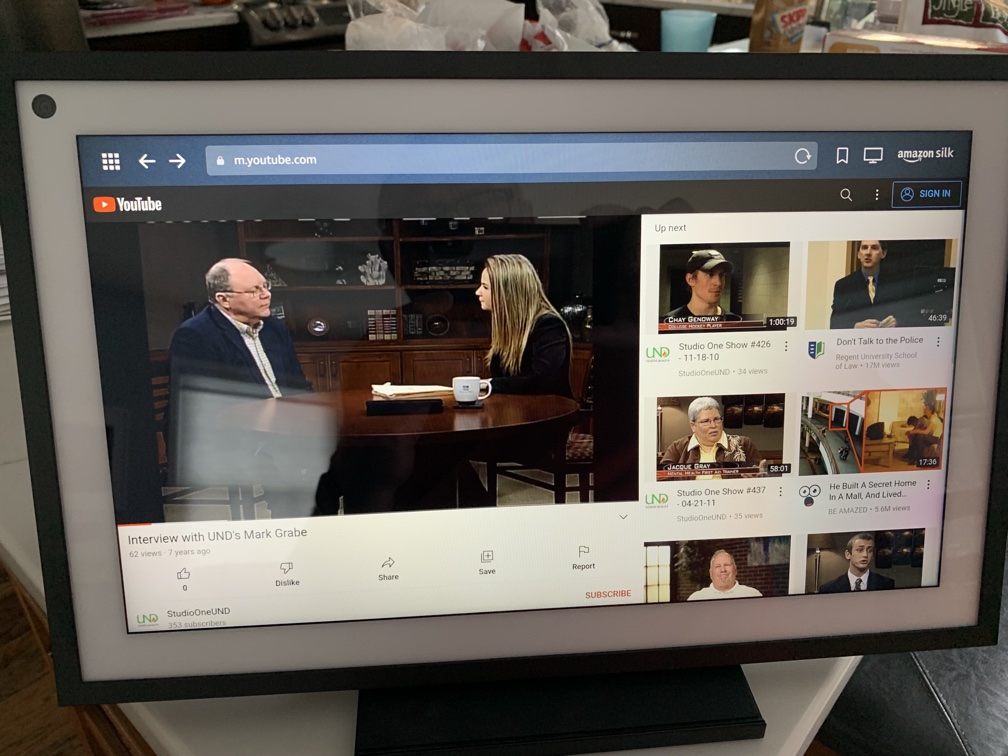
The Show runs the Amazon Silk browser. It is easy to enter text searches from the screen and use Silk on the Show pretty much like you would use Chrome on an iPad.
As an example, I thought I would examine some of the tutorials I had created on YouTube. I tried searching for Mark Grabe and found something I had never seen before. In 2014, I did an interview on a local television channel and searching my name brought up this video (for anyone interested in watching me talk about cyberbullying here you go). I had no idea this interview had been preserved.
For the classroom – this device would be an interesting addition to classrooms. It is large enough for a group of students to view and it is inexpensive.
BTW – I had forgotten about the app I described in the interview. Here is a link to StopIt.
Posted inUncategorized|Comments Off on Discovery with the Amazon Show
We use cookies to ensure that we give you the best experience on our website. If you continue to use this site we will assume that you are happy with it.
You can revoke your consent any time using the Revoke consent button.


You must be logged in to post a comment.