
A good proportion of what I write is based on highlights and notes I have stored in Obsidian. Collaborative notetaking has always been a personal interest. There is a way to share Obsidian notes directly, but because this requires your content to actively use a server located off your own computer, it requires a subscription. I have no objection to supporting developers through subscriptions, but I have reached my personal limit on how many subscriptions I can handle. There are other ways.
In a previous post, I described Glasp, which is a site for highlighting and annotating with built-in AI. The AI is referred to within the service as an AI clone – implying that you can prompt your own documentation. There is also a “find others with similar interests” feature that takes you to the notes of others willing to share, and you can prompt their content in a similar way.
One of my more popular posts explained how to export Obsidian content to NotebookLM. It turns out NotebookLM notebooks can be shared, so I decided I would share my content for anyone who wants to use it. I am an educational technologist, mostly now exploring note-taking, AI applications, and generative processes to improve retention and understanding. You may or may not be interested in these areas, but if you are a NotebookLM user you might just want to explore this sharing option. NotebookLM is a great tool for interacting with content using AI and perhaps even creating a podcast based on queries of this content. You cannot add to or edit someone else’s content, which I wouldn’t want, but a user is free to explore your shared content using the “read only” features of NotebookLM.
Fitting with my personal interests, the opportunities an educator might find for collecting specific references he/she wants students to explore just seems like a useful application.
A very brief tutorial
A screen capture of the topic of an open Notebook appears below. The process of sharing this notebook is initiated from the share button at the top of the browser window.
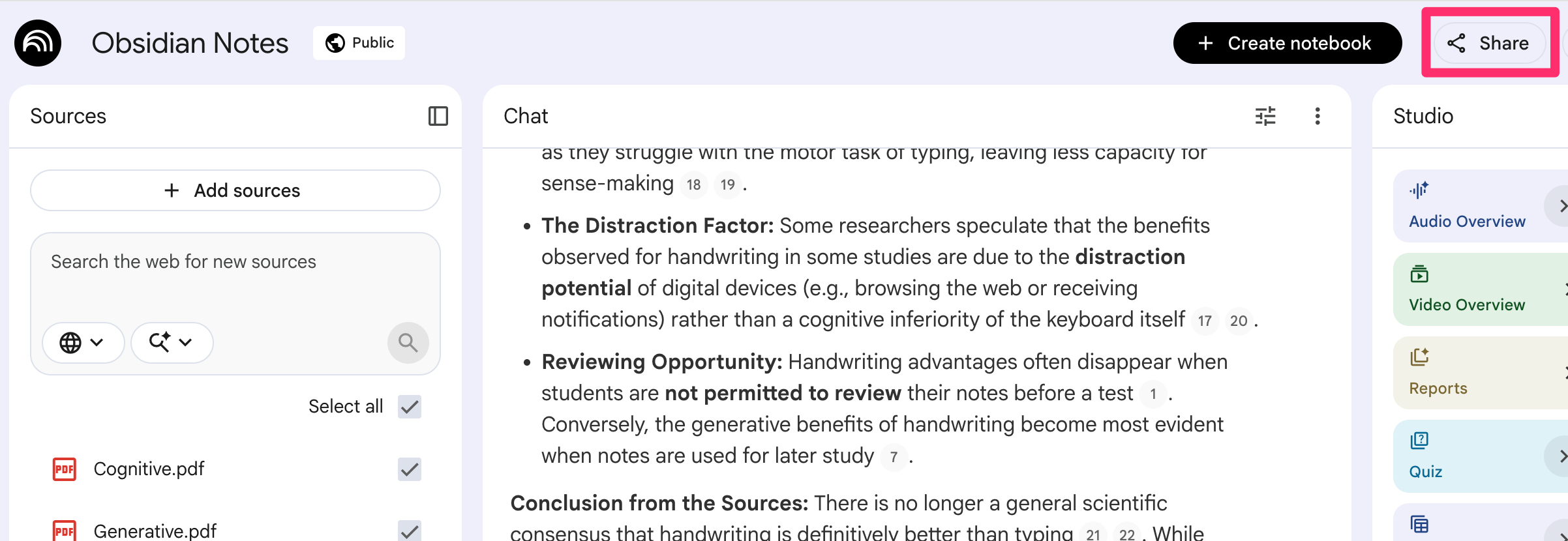
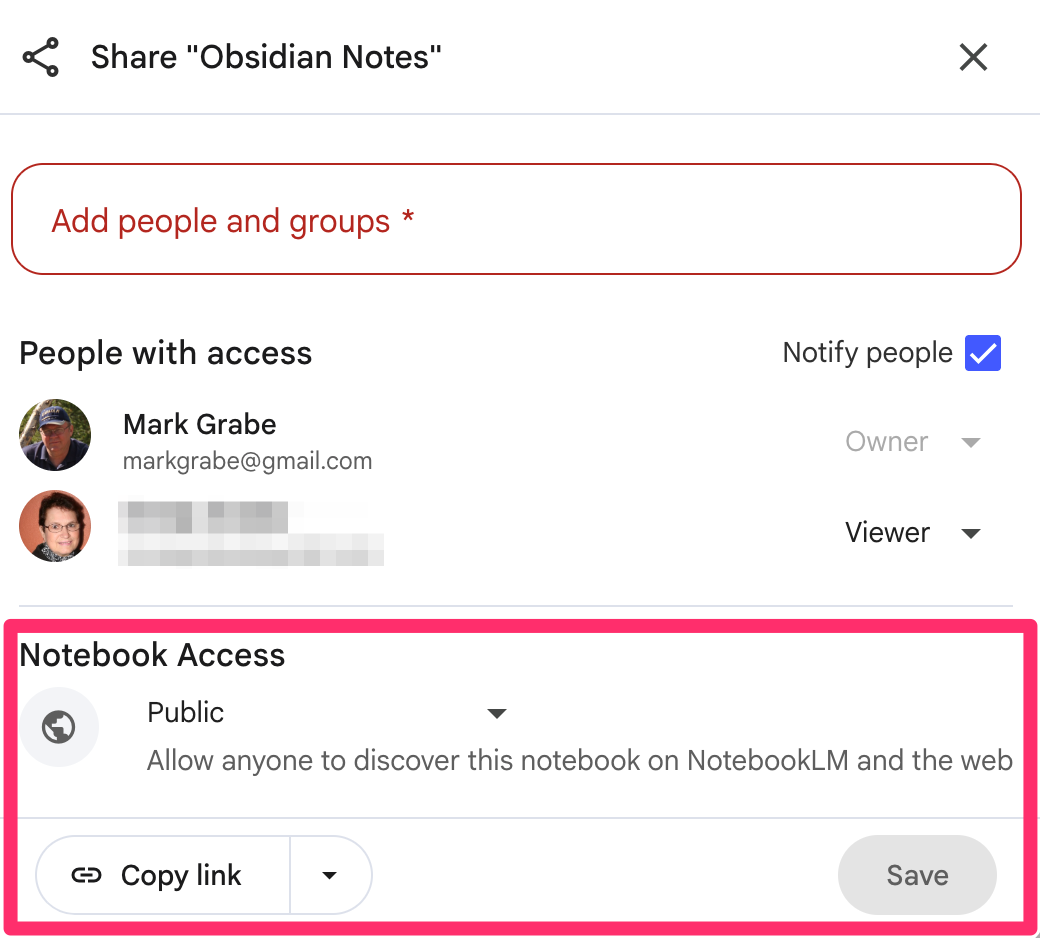
Selecting the share button opens an overlay with multiple options. My intent is to offer public access to explore my notes. NotebookLM then returns a URL others can use.
Use the following link to explore the content I have archived: https://notebooklm.google.com/notebook/2d94a77a-62f7-470d-9dcd-d1526a4892a5

You must be logged in to post a comment.