I came across this resource suggesting how supporters of a policy should go about using social media as advocates. The suggestions were proposed by KnowledgeWorks specifically focused on ways to support schools in moving to strategies that provided for personalized, competency-based instruction, but the suggestions would seem to be useful in many areas. I happen to be a supporter of competency-based approaches and I have written about the topic for years, but I admit that there are suggestions here that I have not applied. The value of providing tips for how to go about advocacy had not occurred to me and I found the analysis and advice to be valuable.
One learning outcome of the past year’s battle with the pandemic is that broadband is essential to the functioning of the country. Many who read this blog are focused on educational issues and understand the role that broadband has played in education and the struggles schools have had with access for all students. Within cities, residents should have access to at least one provider, but in this case the challenge may be cost. There are other issues with providers such as net neutrality with competition not always a solution for those looking for a provider offering different options. There is also the issue of cost and quality with the U.S. lagging behind the connectivity available in other countries.
Biden has proposed a $100 billion plan to all citizens with community broadband playing an important part of the approach. Community (municipal) broadband would not provide help for those in rural areas with limited service, but it would seem a way to offer service in populated areas. The idea of municipal broadband access is that cities could offer community wifi access as a utility. The cost could be part of the benefits of city taxes, through subscriptions, or a combination. Obviously, proposals to provide municipal broadband tend to be opposed by traditional broadband providers who have worked in many localities to block municipal plans through political action.
Many states (22) have significant barriers to municipal broadband. I was surprised to see Minnesota (my state or residence) on this list because I know that some efforts do exist. The article lists Minnesota as facing “competitive barriers” to the development of a municipal option.
Minnesota state laws require municipal governments proposing to offer broadband services to residents to obtain a referendum “supermajority” of 65% of voters to proceed. Municipal governments are able to construct, extend, improve and maintain facilities for Internet access only if the city council finds that proposed broadband network and service will not compete with existing services provided by private telecom companies, or if such services are not and will not be available through private telecom companies in the foreseeable future.
The summary of the American Jobs Plan is available from the whitehouse.gov. The section on high speed internet as critical infrastructure is about 1/3 of the way into the document so you will have to search or scroll to find it (Revitalize America’s digital infrastructure).
Posted inUncategorized|Comments Off on Municipal Broadband
Search is likely a technology-based opportunity most of us have given up exploring. We use Google, Bing, or DuckDuckGo and leave it at that. Perhaps if we feel especially inquisitive we use more than one of these options. Search is an area some are still exploring trying to come up with innovative modifications that may prove useful to users. Carrot2 is an open source effort that applies a clustering algorithm to search results – think trying to organize search results into folders. I don’t see Carrot2 as the equal of the more popular search engines when it comes to power, but it is interesting to explore what this service generates
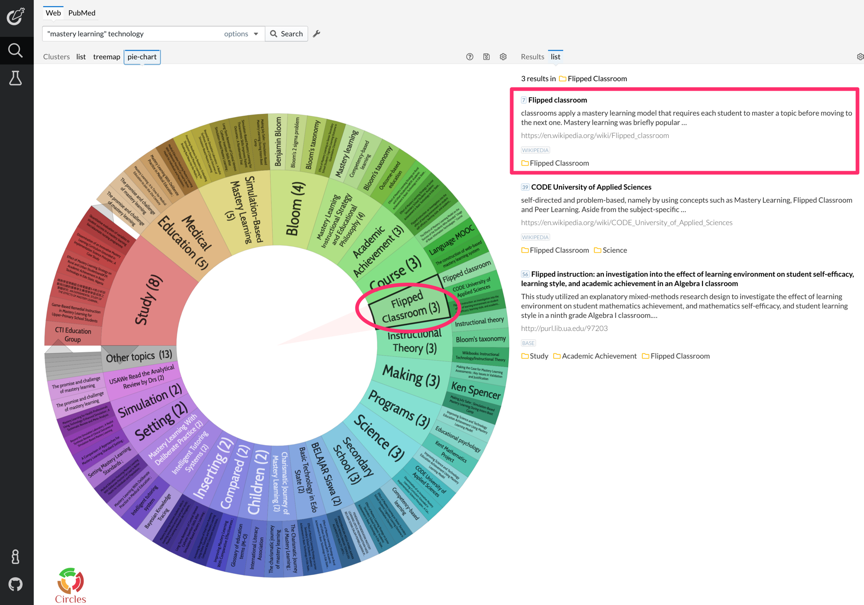
The search term input is very traditional. Here I am searching for “mastery learning” and technology just because I have been writing about this topic lately.
The results came back looking like this. Because the flipped classroom allows educators to prepare videos to be viewed outside of the classroom as a replacement for classroom presentations, this is a technique some educators use to free up face to face time to work with individuals or small groups of students struggling making progress and this is strategy some see as a way to allow greater personalization. The clustering technology found several hits on flipped classroom including mastery and decided this was a cluster.
The follow is an embed of Google My Maps showing photos taken at multiple locations while spending a couple of weeks in southern Africa. The map is interactive so you can view a few photos taken at different locations by selecting the camera icons. The best way to use this embedded map is to decrease the size so that you can see multiple camera icons and then explore different locations. There may be locations when viewed from a distance view in which a single camera icon hides the multiple icons at the location. To check this possibility, center the map on a camera icon and then enlarge the map.
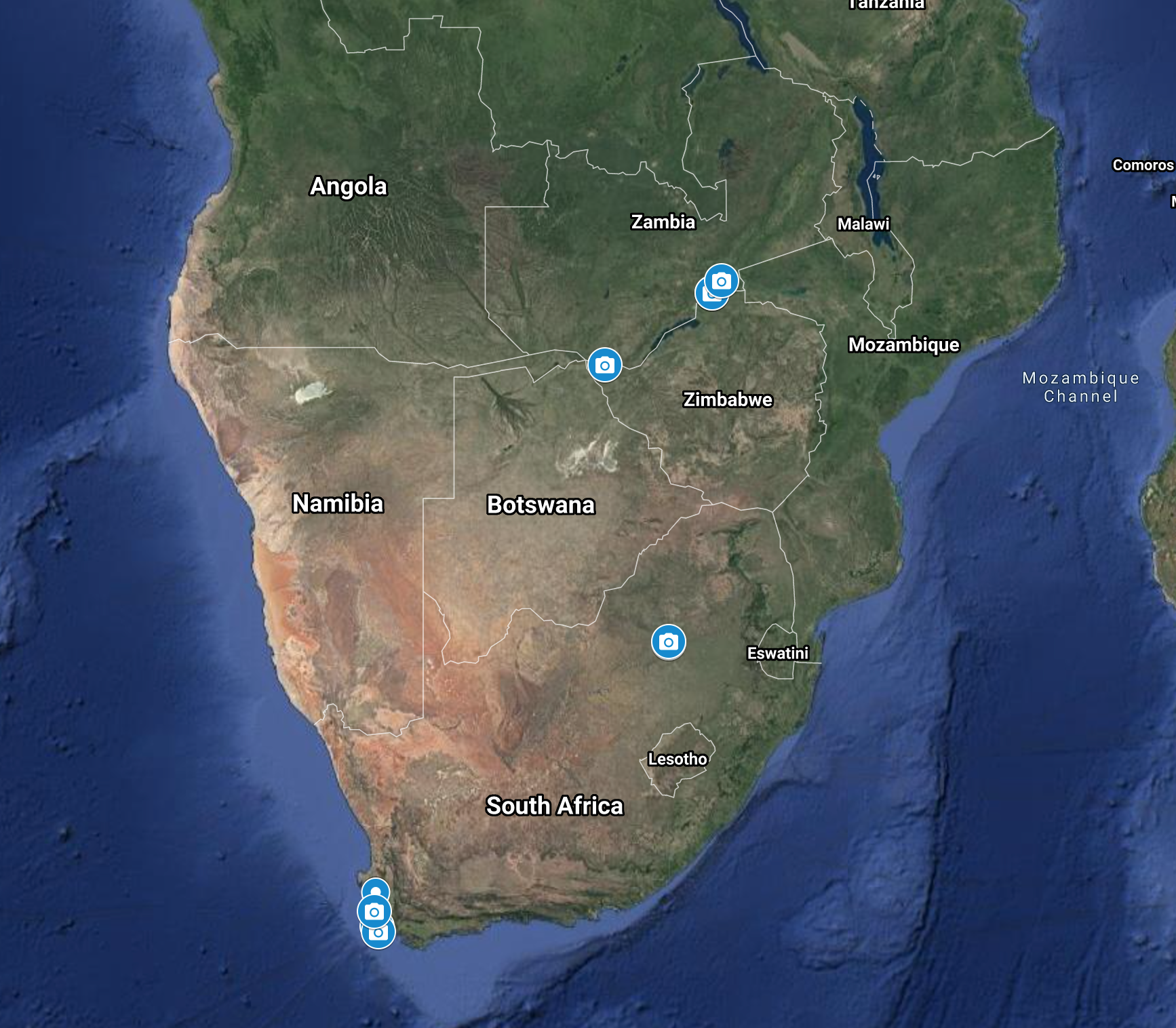
Just to explain what I was suggesting from the first paragraph, you will want a map view of about the scale shown below to see all of the photo icons.
My Maps is a Google service allowing users to add personal layers to Google maps. Google Map Maker was a popular and easier to use service educators and students used to create personalized maps, but Google discontinued Map Maker. My intent here is to a short tutorial on how I created the Google map you find embedded at the top of this post. Google offers its own help for the product. This tutorial follows a previous post in which I describe the coordinates from iPhone photos. There are multiple ways to position markers on a map. You can search by these coordinates, the name of a location, or simply insert a pin in the map at a location of your choosing. My reason for using the coordinates for photos was explained in the previous post.
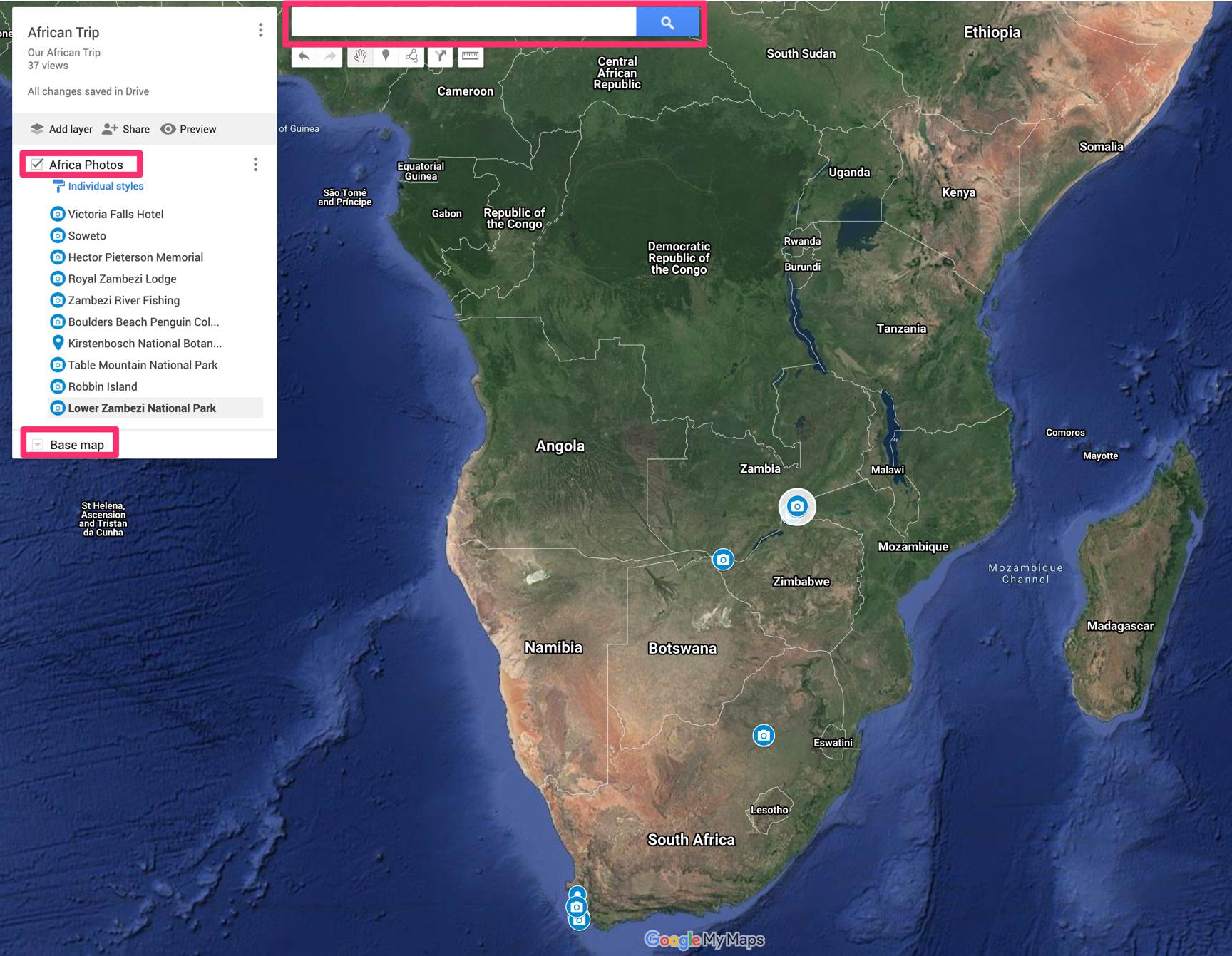
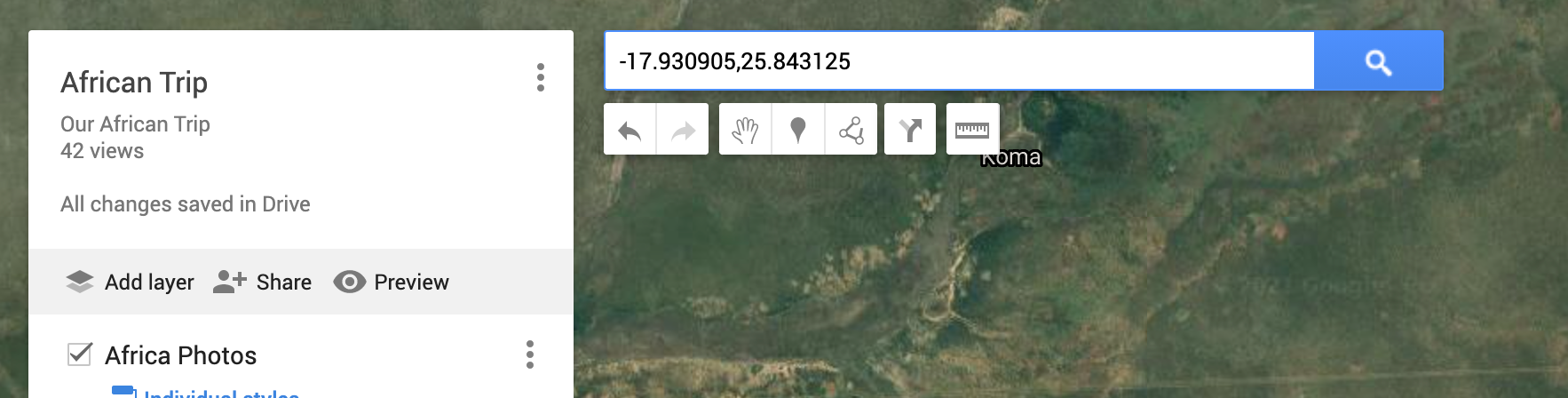
The My Maps interface is shown below. I have highlighted three features in red boxes. The search box is where you would enter map coordinates or formal names for locations to position a pin. The other two boxes indicate the Base Map and the layer I have added (if full size, you should find a button to Add Layer. So you first position My Maps over the region you want and then add a layer that you name (African Photos in this case). The list of locations included in the African Photos includes the locations I have established and named.
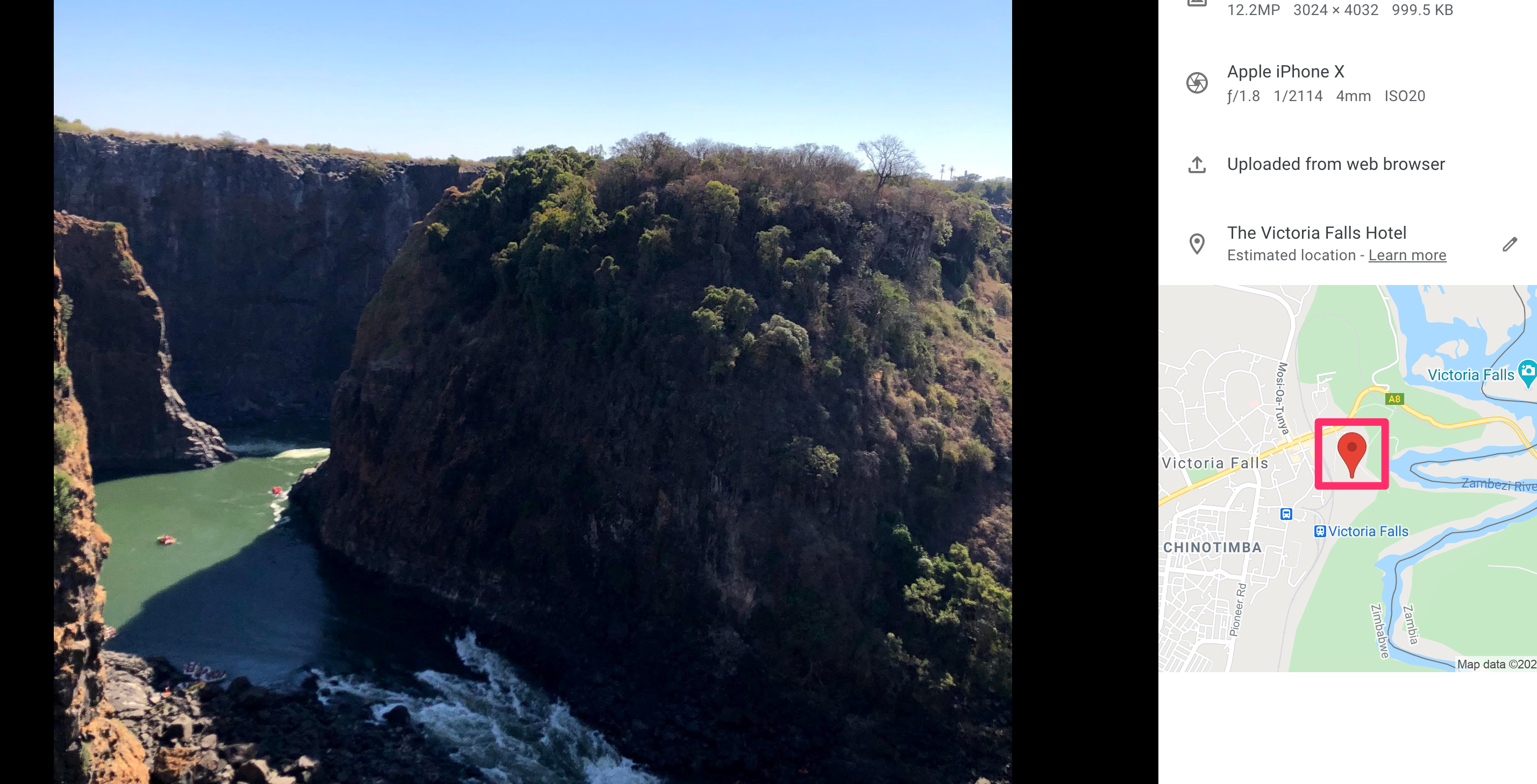
So, I want to add a few photos we took during a helicopter flight over Victoria Falls. I have iPhone images and when uploaded to Google Photos (and in other ways), the map location becomes available,
In Googple photos, clicking on the pin showing the location reveals the map coordinates.
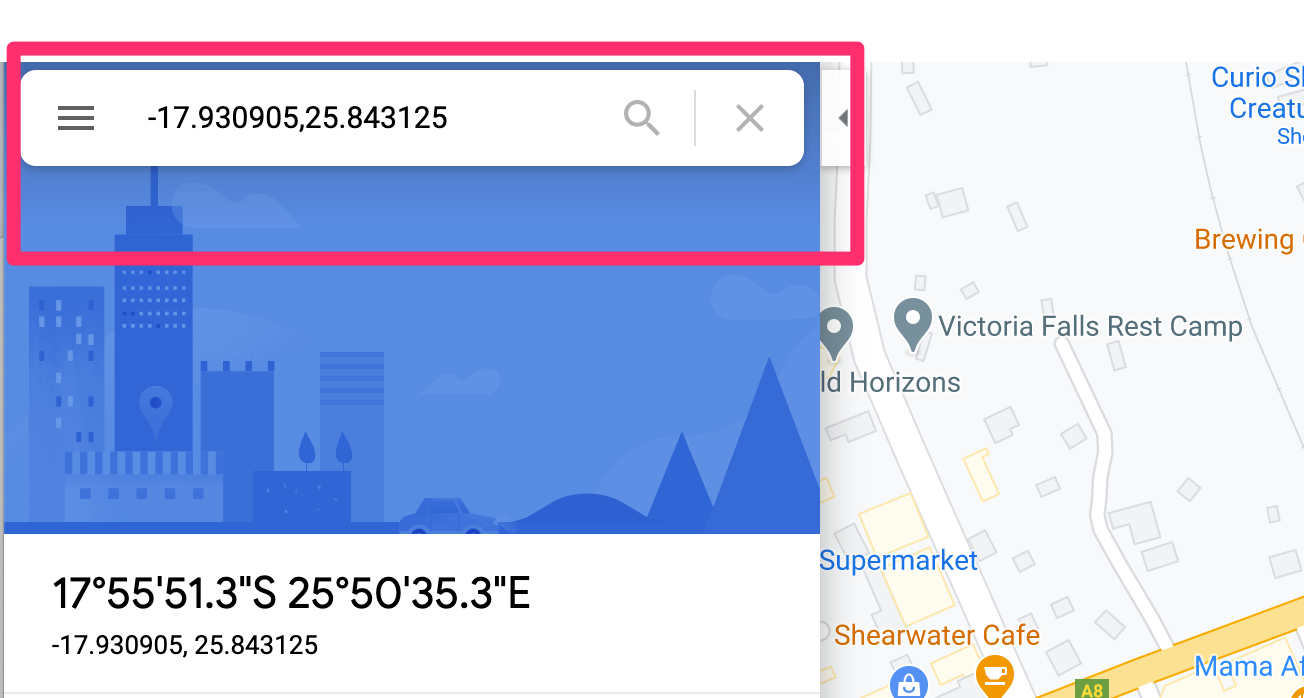
I can copy and paste these coordinates in My Maps to find the location on the map. Of course, I could also just enter Victoria Falls in the search box because I know there is a name for my location. The coordinates are useful when a location is not known or there is no formal name.
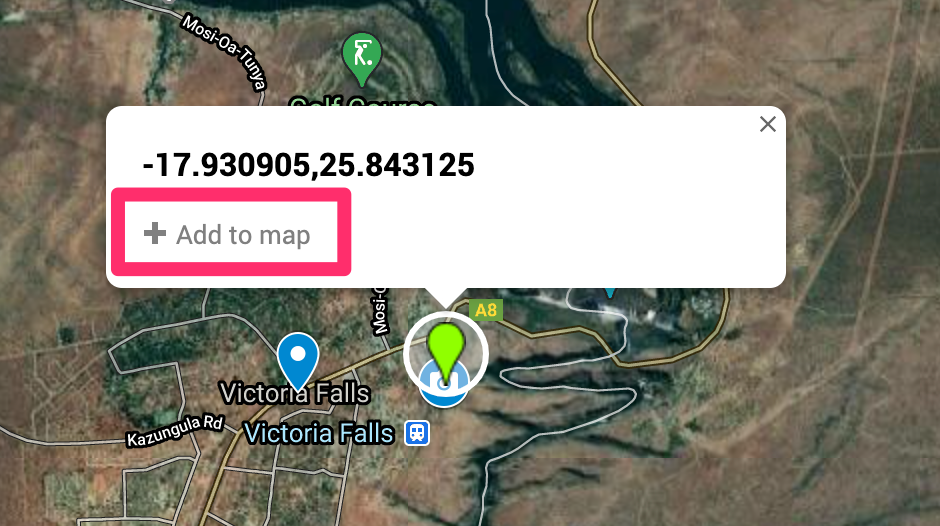
When My Maps searches for the location, it will place a pin and ask if this is the location you want to add to your layer.
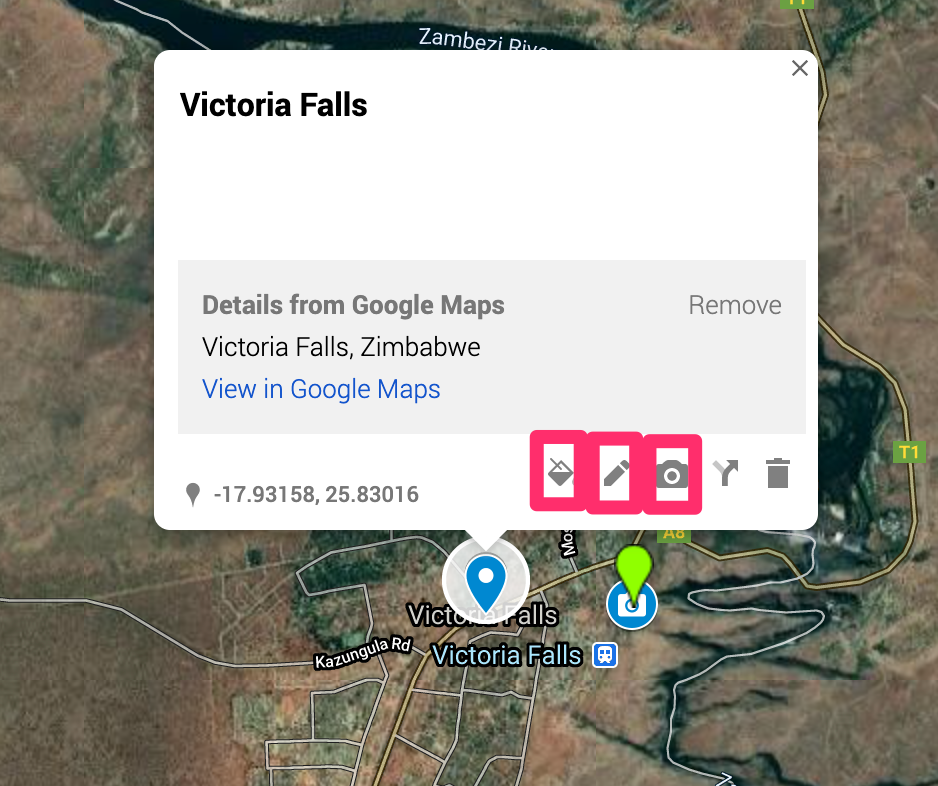
Once the pin in inserted you will see the following display (actually the coordinates will be listed where Victoria Falls now appears). The icons in the red boxes allow changes. The paint bucket allows the substitution of other markers for the general pin. I use a camera icon to indicate photos. The pen icon allows the name for the marker to be modified. In this case, I changed the coordinates to Victoria Falls. The camera icon allows images to be associated with that icon.
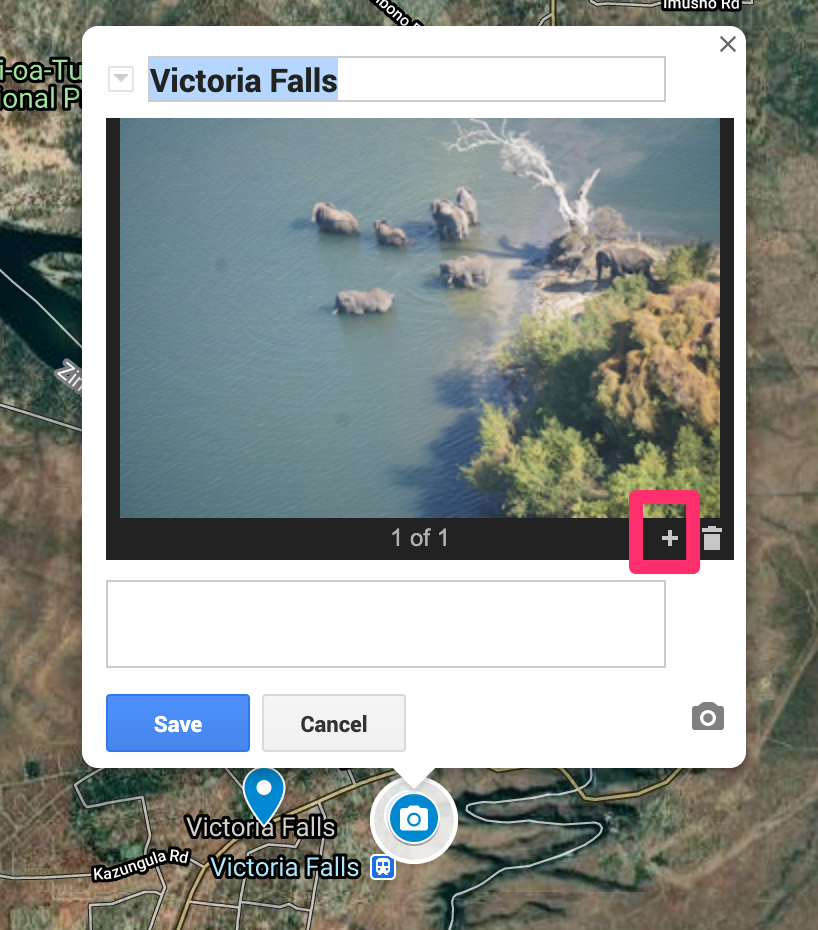
Here I have added a photo (a photo I shot from the helicopter with my camera rather than a phone). The + icon allows additional photos to be added.
Once I established a work flow, the processes was tedious, but not that complicated. The images you see in the map as a user are not that large so it makes sense to shrink the size of your photos before uploading. Remember to save.
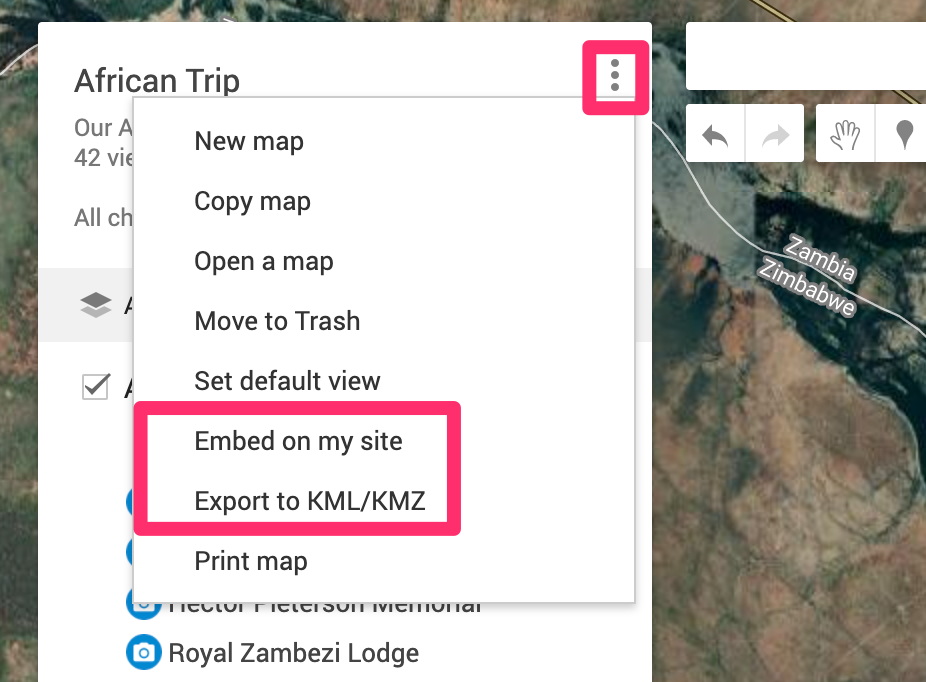
The three dots at the top of the tool window offers options for sharing. I used the embed on my site option for the map at the top of this post. The KML file allows the map to be used in other apps (Google Globe).
This map was intended as a My Maps tutorial. If you are interested in more photos, I have a Flickr folder of animal pictures with links to information at a different URL.
I am working on a personal project to prepare for a long trip I hope to take driving the ALCAN highway this summer. We received our second COVID vaccine today and I am optimistic things will open up some by July. We drove this route many years ago when some of it was still gravel and we want to make the trip one more time in our retirement. Among other goals, I want to generate a map of the route complete with photographs and annotations.
It used to be that one of the most popular ways to do this was to use Google Map Maker. However, Google has abandoned Map Maker. By the way, if you are interested in this topic beware when you read tutorials online. Check the dates of posts or you might assume should guide your exploration and pay attention only to recent content. There are plenty of Google-related suggestions that simply do not work anymore.
I have decided to spend time with Google My Maps. I have been able to get it to do what I want (create a Google map showing the location of photos and export the KML file so I can show photos in Google Earth). I have generated a proof of concept, but the method is very tedious and I will wait before I offer a description on this blog. If anyone reading this has suggestions related to this general goal, please add a comment to this post (I am aware of Scribble maps, but the cost per month seems very high).
Anyway, I have decided to explore my ultimate goal by making use of my photo collection from Southern Africa. I have several hundred photos taken with a combination of my iPhone and my SONY 6300. The iPhone saves geolocation data and the plan was to use these data to determine precise locations and to upload images taken with the SONY using the location taken from iPhone photos for SONY photos from similar time and date. It should work. I cannot figure out to do this in some type of “batch” approach so what I have worked out to this point won’t be for everyone.
Projects like this help me develop some sympathy for less experienced users trying to figure out things on their own even when they carefully follow instructions they find online. Here is an example. I can still find many photos from the African trip on my phone even though the trip was in 2019 and I have some unique photos on the phone I did not upload to Google Photos or Flickr. I prefer doing projects like this on a Mac, Chromebook, or my iPad because of the larger size and keyboard, but I have discovered the different devices don’t work the same even when using the same apps. This is what I mean by getting frustrated – you follow the directions for a given technique on a different device and you may not be successful.
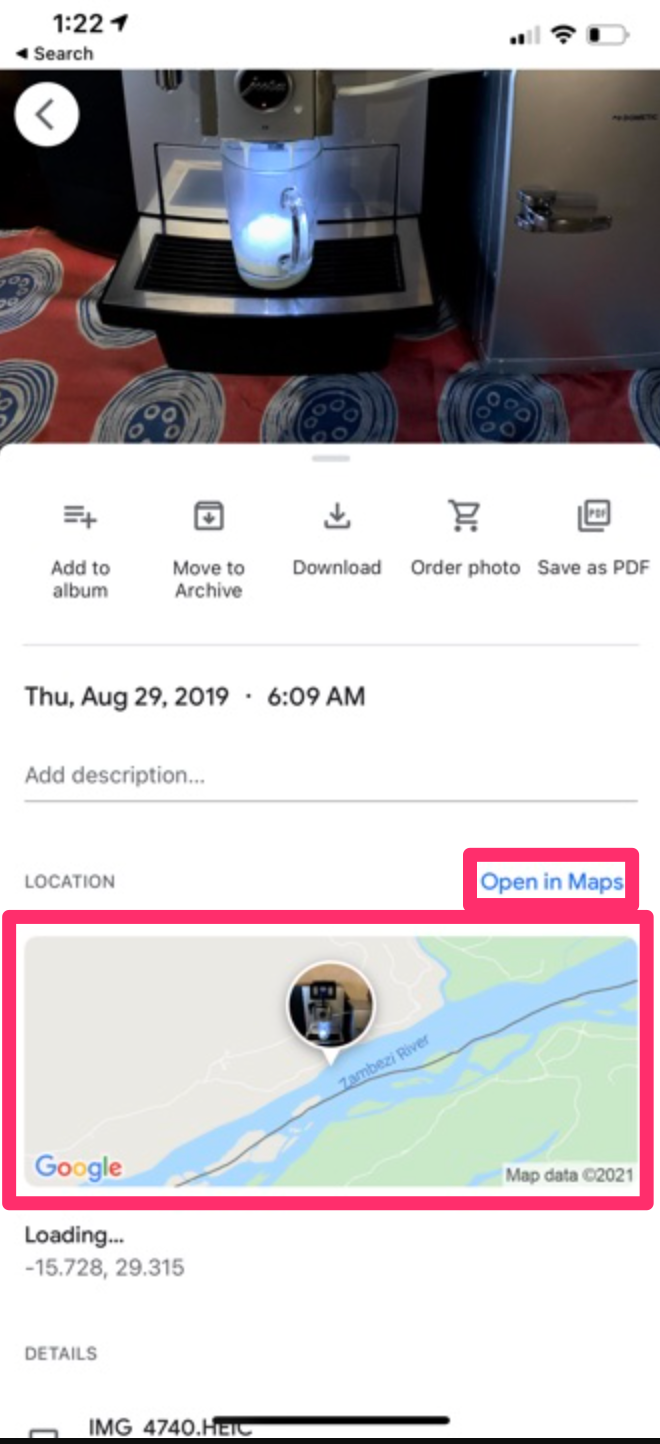
Here is an example of what I mean. Here is a screenshot from my iPhone. It shows a coffee maker (you were expecting elephants) in a lodge and if you scroll down, the iPhone shows the position of the photo on a map.
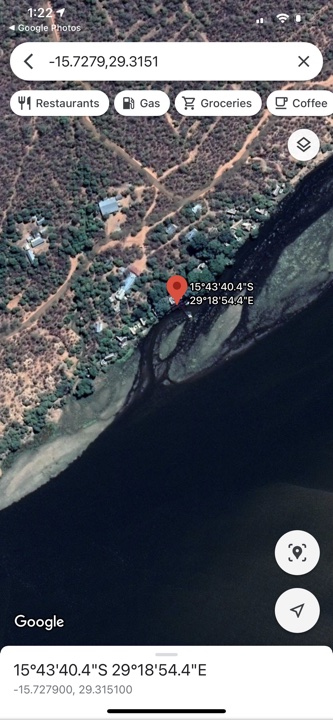
I played around a lot with the options from these displays. If you use the “Open in Maps” link (smaller red box), you get the following display.
This is what you see – the position of the photo on a map. For future reference, the useful thing about this display is that you can copy the coordinates and paste into My Maps to add a location for a photo as part of a personal layer. This is part of the way I eventually added images to this layer.
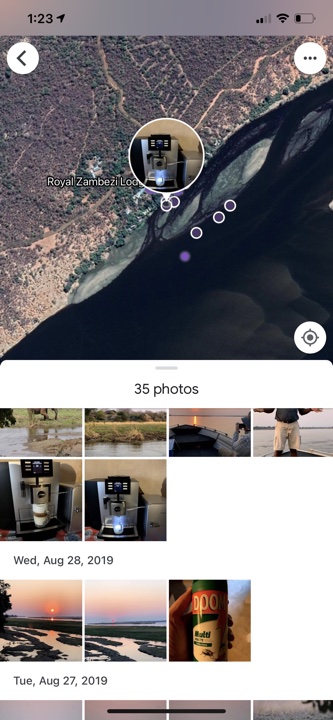
However, if you click on the map itself and not the link, you get a very different display allowing some different and useful data.
This display shows the position of other photos I took near the photo I had selected. You can see some of these other photos displayed with dates and you can access them by clicking on the small circles in the display. You can also move the map around to show areas not presently visible and photos taken in those regions as well. So, the coffee maker was located in the Royal Zambezi Lodge and this information would allow me to search my Google Photos by date to add other images to map at approximately the same location.
You could try this same approach on an Apple desktop machine or an iPad and you would not have access to this second type of display. There isn’t a separation between the link and map as found on the iPhone and selecting the map shows the location of one photo only.
Posted inUncategorized|Comments Off on Mapping photos – confusion reigns
We use cookies to ensure that we give you the best experience on our website. If you continue to use this site we will assume that you are happy with it.
You can revoke your consent any time using the Revoke consent button.




You must be logged in to post a comment.